Adding Vally to your Website
Before you start
If your website is set up through the Vally Edge service and you would like to add this functionality, contact Vally and we can take care of this for you.
Overview
Vally offers a free and simple way of adding your Vally booking page to your website. This is as easy as adding a single line of code to your site. After you're done, our software creates a popup that opens when your customers click a "Book now" button on the corner of your site. This quick walkthrough will provide general steps for integrating this functionality.
These general instructions do not outline exact steps for integrating into specific platforms such as WordPress or React.js.
Functionality
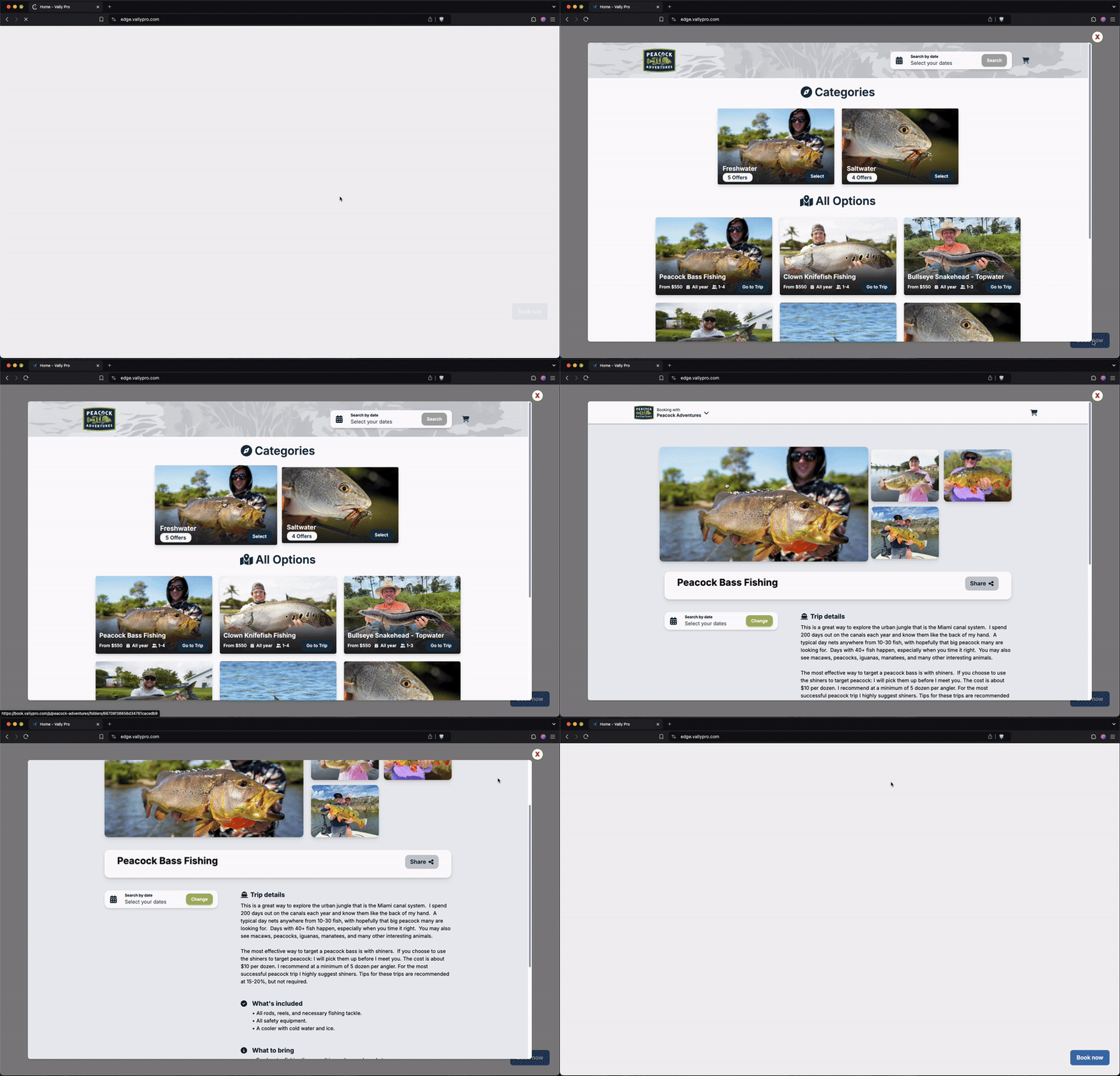
This embedded script does 3 main things:
- Button Overlay - A button is placed on your website. This allows for easy, out-of-the-box integration.
- Link interception - Links on your site directed to
https://book.vallyproare intercepted by our script. - Vally Popup (Desktop only) - If a link is intercepted on desktop, a modal is opened instead of page navigation.
1. Create your script tag
The Vally popup is embedded by adding a standard HTML <script/> tag to the <head> of your website. Before we can add it to the <head>, we have to build it. Let's make a script tag that works for your business:
a. Find your business slug
This is found in the URL of your business page. It's the segment following https://book.vallypro.com/p/. In this example our slug is peacock-adventures-llc

b. Copy this tag:
<script src='https://api.vallypro.com/api/embed' id="vally-embedded-checkout" data-business="your business slug" defer></script>
c. Replace the data-business attribute:
Replace the data-business attribute with your business slug from the previous step. This example shows the 'peacock-adventures-llc' Vally business page:
<script src='https://api.vallypro.com/api/embed' id="vally-embedded-checkout" data-business="peacock-adventures-llc" defer></script>
2. Add the tag to your website
This step will be different depending on the platform your website is built on. Regardless of your platform, this step ultimately boils down to pasting the tag from the previous step into the <head> element of your website.
The final result should look something like this:
3. Customization (optional)
You can add optional attributes to your script tag to change the button style. A fully customized button might look like this:
Hide button
By default the "Book now" button is visible and overlayed on your website. If you would like to disable the button and rely on the link interception feature you can do this by adding the data-show-overlay-button="false" attribute.
Button Text and Text Color
- Change the button text by adding
data-overlay-button-text="Your Text Here".The default text is "Book Now". - Change the text color by adding
data-overlay-button-text-color="your custom hex color".The default color is #FFFFFF (White)
Button Background Color
Change the color by adding data-overlay-button-background-color="your custom hex color". The default color is #3F72AF (Vally blue)
Position
Change the position by adding data-position="your custom position". The default position is bottom-right accepted values are:
top-lefttop-rightbottom-leftbottom-right
Fullscreen
Change the modal size by adding data-fullscreen="true". The default value is false. Accepted values are:
truemobile <-- Only creates a fullscreen popup on mobile devices.false