Import your future calendar events
Step 1) Displaying Your Vally Calendar on Google:
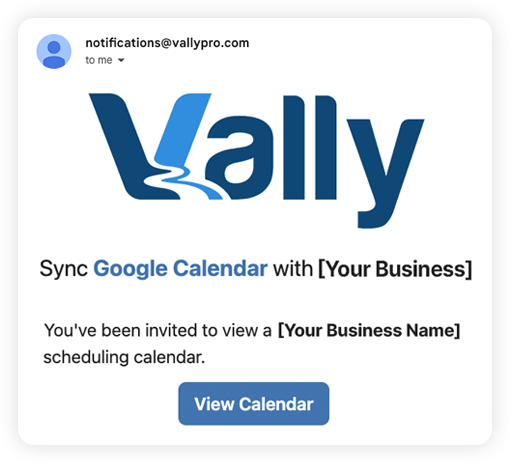
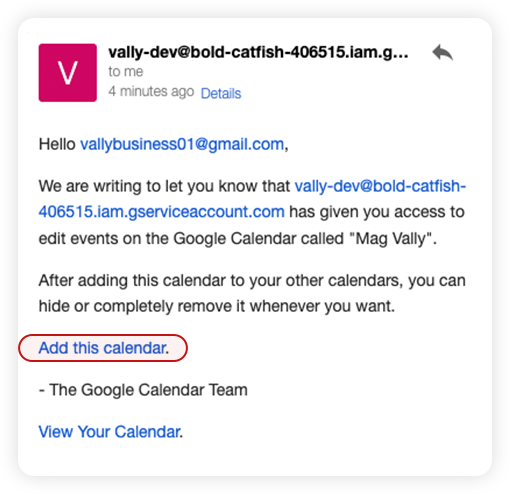
When you sign in to Vally for the first time, you will receive an email at your Gmail account.
- Click the "View calendar" button in the email to display your Vally calendar in Google Calendar.
- Important: Make sure you're logged into the same Google account in Google Calendar. If you're not, you can switch accounts by following these steps:
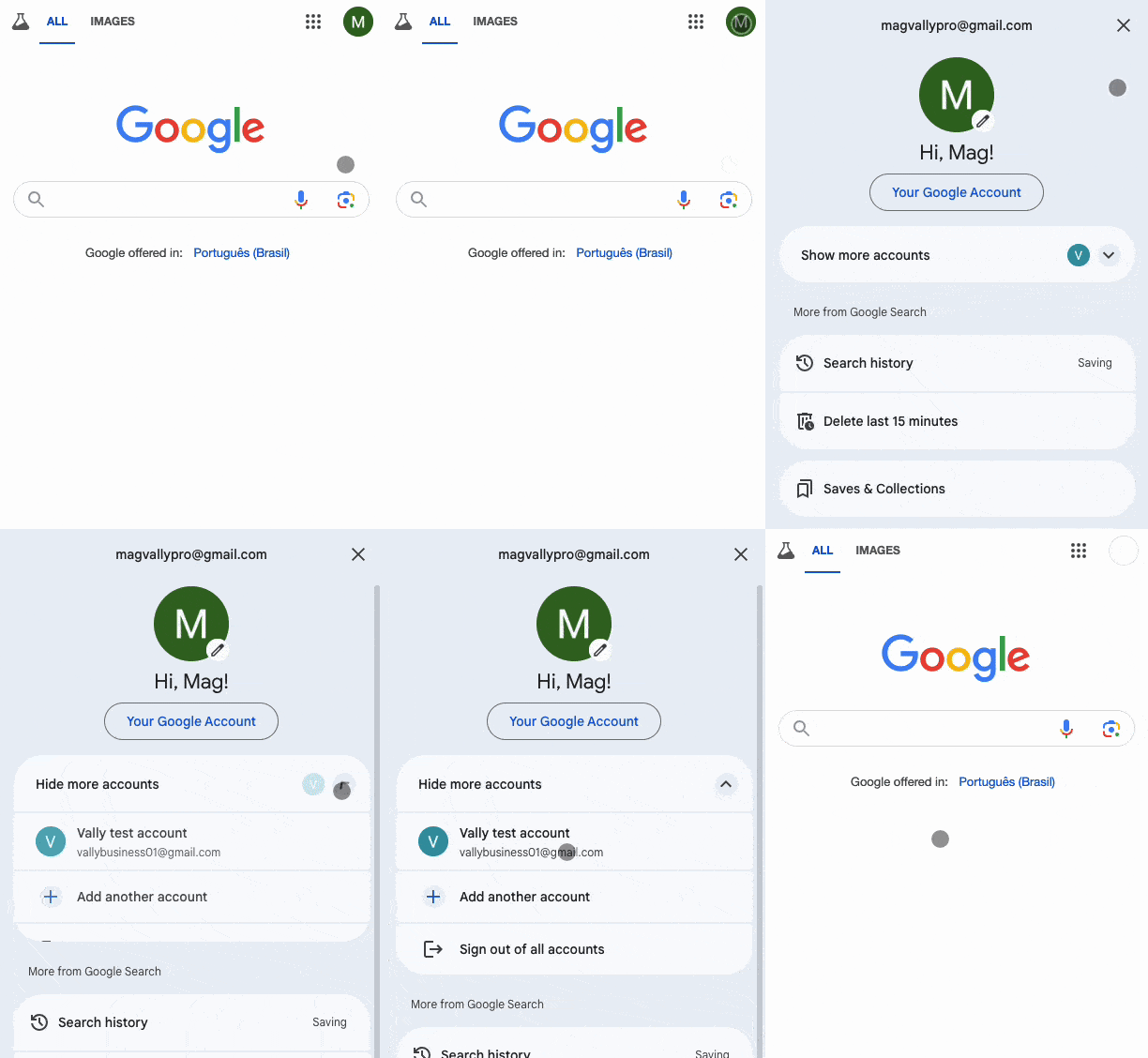
.
If you'd like to sync a different Google account:
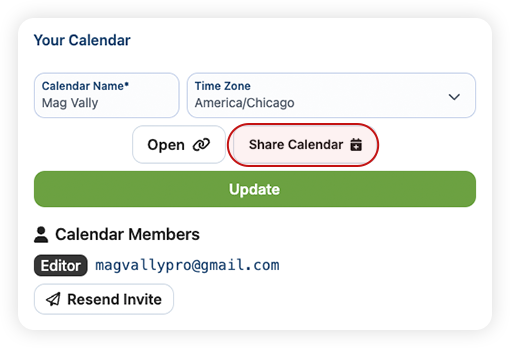
- Go to Profile page, then and click "Share Calendar"
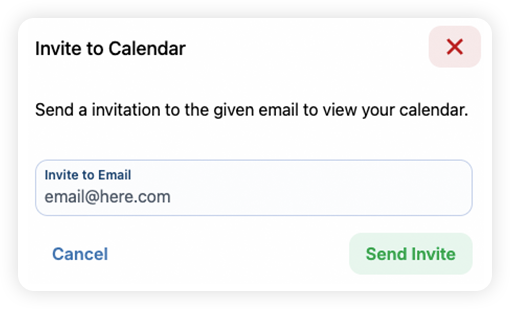
- Share the Vally calendar with the desired Google account.
- You'll then receive a new email at that account—click the "Add this calendar" button, and the Vally calendar will load into Google Calendar.
Step 2) How to Import Your Google Calendar
To sync your Vally calendar with Google Calendar:
- Go to the** Calendar Import **page in Vally.
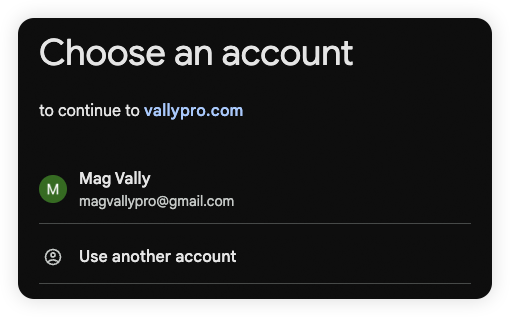
- Click "Sign in with Google" and sign in to the Google account that contains the calendar events you wish to import.
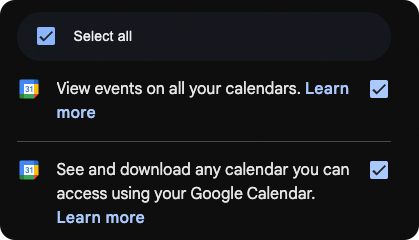
- Make sure the **Select All **option is enabled to import all relevant events into Vally.
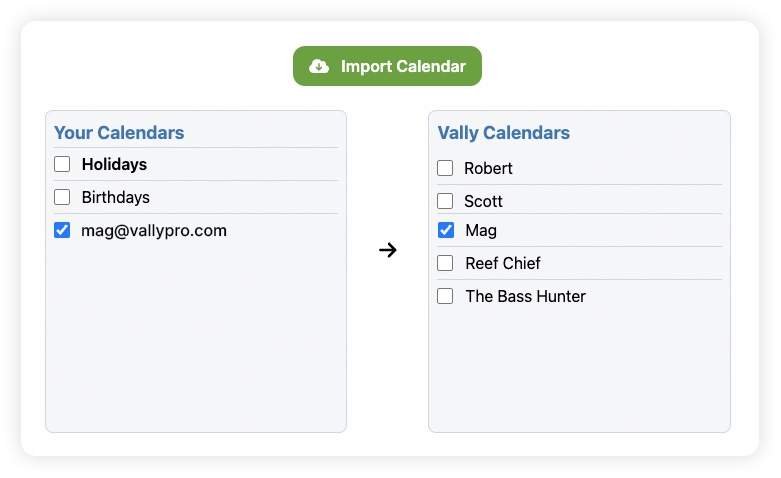
- Select the calendars you want to sync, then click "Import Calendar." Wait until the import process is marked as successful.
Managing duplicates
The Vally calendar creates duplicates of all imported events. You should now see duplicate entries for relevant events in Google Calendar. To view only the updated Vally calendar, simply uncheck the Google Calendar from which you imported the events.
To view Vally on Google Calendar and manage duplicates, follow these steps:
- Open Google Calendar.
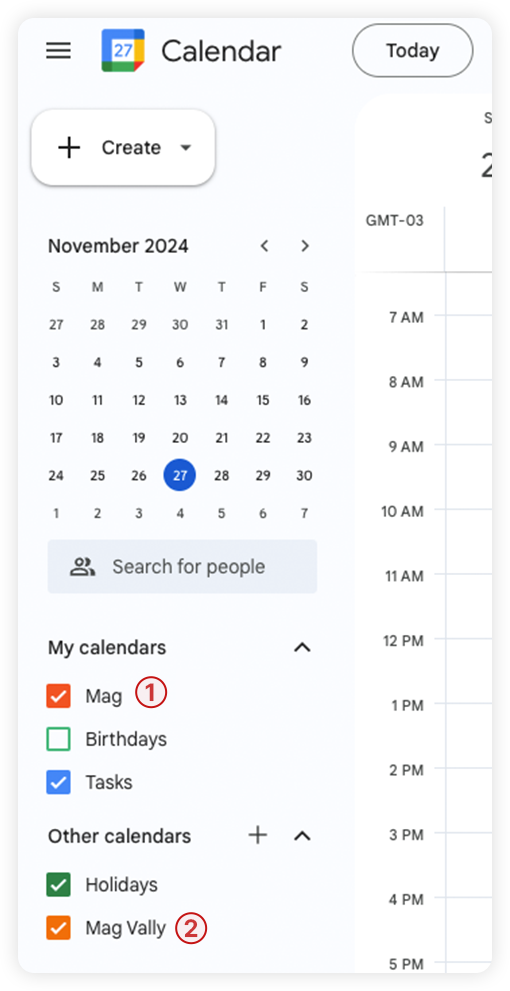
- Find the Vally calendar: On the left-hand side, under "My calendars," locate the Vally calendar. It should appear with the name you have set for it.
- 1 - Your Google Calendar
- 2 - Your Vally Calendar
- View or Hide Vally Events: Check the box next to the Vally calendar to view all events synced from Vally. Uncheck the box to hide Vally events from your calendar view.
- Manage Duplicate Events: If you see duplicates (for example, events showing both in your Google Calendar and the Vally calendar), make sure: To uncheck the google calendar that you imported events to Vally for. You can also choose to delete these events so you can use this calendar for future calendar events that don’t effect scheduling on Vally.
Add Google Calendar events to your Vally calendar
To add Google Calendar events to your Vally calendar:
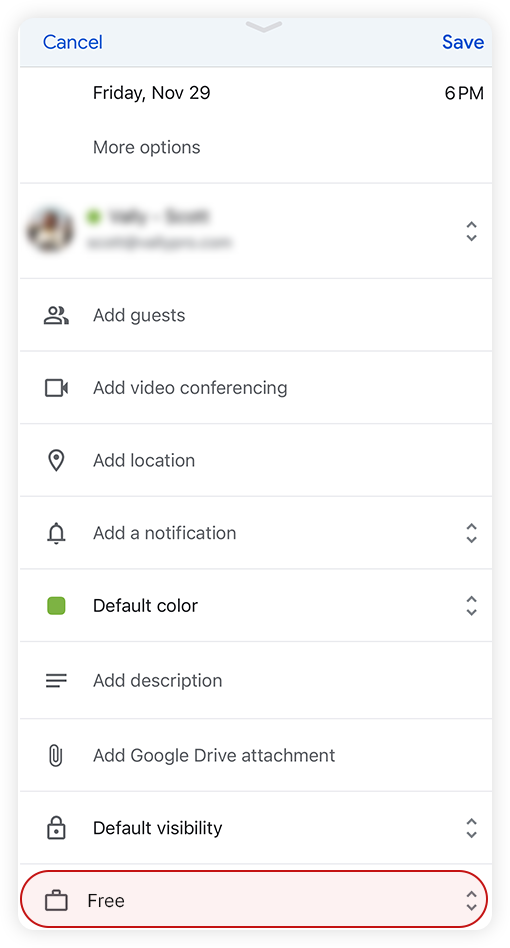
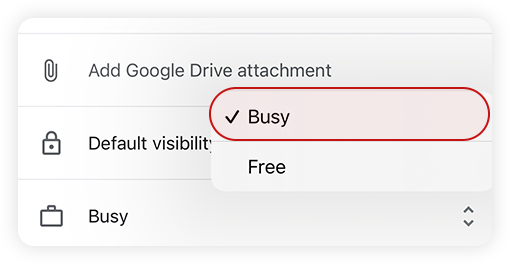
- Set your Google Calendar Event as Busy:
- In the Calendar Event, scroll down to check if the calendar is Busy or Free. If it's "Free", click on it.
- Select the "Busy" option to change it
- In the Calendar Event, scroll down to check if the calendar is Busy or Free. If it's "Free", click on it.
- Choose the Vally calendar as the destination for the event. This will ensure the event is added to your Vally calendar.
The only rule is the following: do not transfer events between Google Calendars. All reassignments should be done directly through Vally. If you delete events in Google Calendar, they will also be deleted from Vally.
Congrats! Your Google Calendar is synced with Vally.