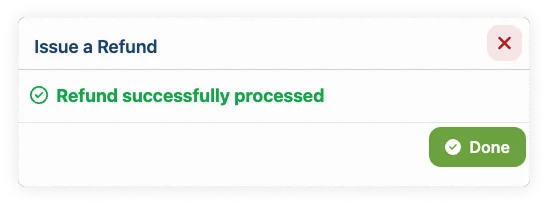
Issue a Refund
When you need to refund a customer, Vally makes it easy to process full or partial refunds directly from the order page. To get started, head to the order you wish to refund.
How to Issue a Refund
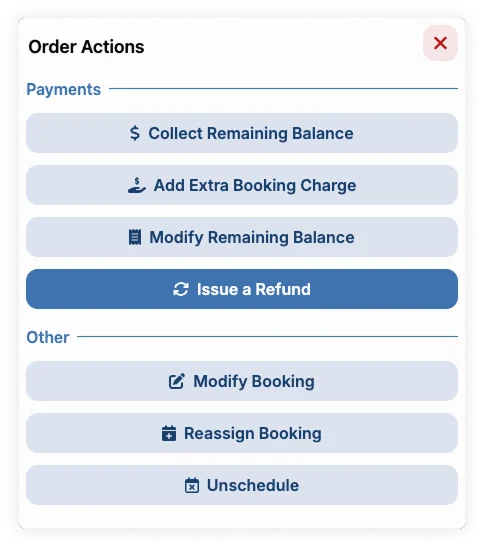
- On the booking you want to refund, click "Order Actions" button, and then select "Issue a refund"
- Select who requested the refund:
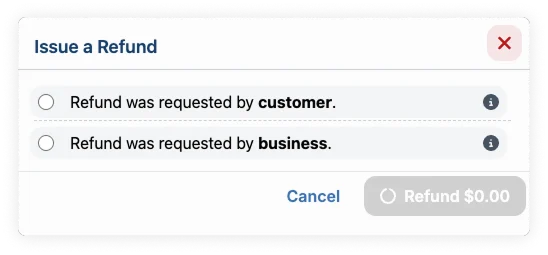
- Requested by customer: A cancellation of the service by your customer within the bounds of your cancellation policy. Fees are not returned to the customer.
- Requested by business: Your inability to provide the service the customer reserved. Common examples are inclement weather, equipment malfunctions, or staffing issues. All fees are returned to the customer, and Vally absorbs the loss in returned processing fees so you don't have to.
- Choose the refund type:
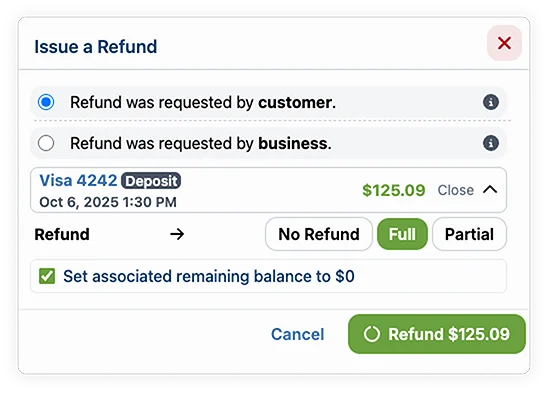
- Full: Refunds the entire deposit amount automatically
- Partial: Allows you to customize the refund by selecting specific bookings and entering a custom refund amount
- If you selected Partial, you can:
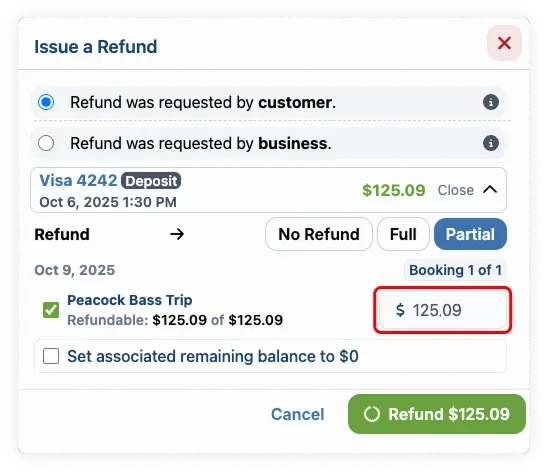
- Select which specific bookings you want to refund by checking the appropriate boxes.
- Enter the exact refund amount in the input field.
- The system will show you the refundable amount available (e.g., "Refundable: $125.09 of $125.09."
- If you selected Partial, you can:
- Optional: Check "Set associated remaining balance to $0" if you want to zero out any future charges for this booking.
- Review the refund details and click "Refund" button to process.