Invite and Manage Members
To invite and manage your team in your Vally account, head to the tab "Members" in the Business Settings page. If you're the sole person in your business, no action is required; you can proceed to the next step.
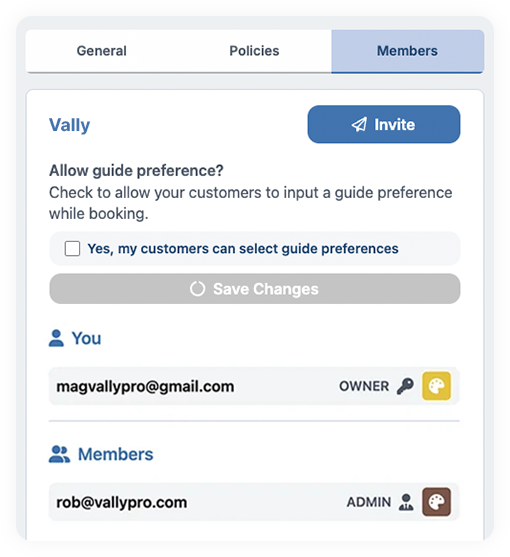
Here you can manage:
- Guide Preference: This feature allows customers to indicate a preferred guide for their booking. While it does not guarantee the guide’s assignment, it informs the business of the customer’s preference. By default, this option is disabled and most businesses leave it off.
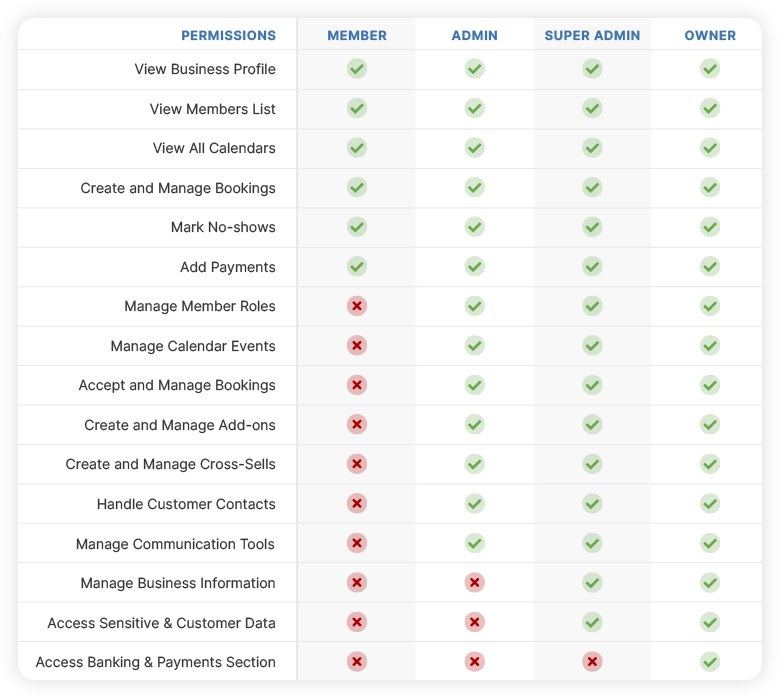
- Team members**:** Invite new members for your team, and manage roles as needed. When you invite a new team member, be mindful of the permission you grant them. Below is a comprehensive guide of all the permissions each role has access to:
Member
Members have essential access to view core business information and manage basic booking tasks, covering day-to-day operational needs.
- View Business profile, Members list, and All Calendars
- Create and manage bookings (including marking no-shows and adding payments)
Admin
Admins oversee a broader range of management tasks, including control over bookings, calendars, and customer information, while also managing sales elements like trips and cross-selling.
- Manage member roles, calendar events, and all booking actions (accept, update, refund, charge)
- Oversee trips, add-ons, and cross-selling configurations (update, activate, delete)
- Handle customer contacts and service questions
- Manage communication tools: email content and website template
Super Admin
Super Admins hold the second highest level of authority, with complete control over all business data, member access, and customer information, ensuring comprehensive oversight of all operations. The only action a Super Admin cannot perform is accessing or editing the "Banking and Payments" section. The "Banking and Payments" tab is accessible by the owner of the business only.
- Full Admin permissions plus control over business information and member management
- Manage all calendars and customer data
- Update or delete sensitive business and customer information as needed
Owner
Business owners have complete authority, with complete control over all other members and the whole business.
Once added into your account, this team member will have to accept the invitation in their email. Once that is completed, you’ll be able to assign them to bookings to keep them in the loop. They can choose to view Google Calendar for all their events, or use the Vally app.
Invite new members
To invite new members, do the following:
- Click the "Invite" button
- Insert member email
- Select the desired role for that member (roles can also be changed later)

Manage member roles
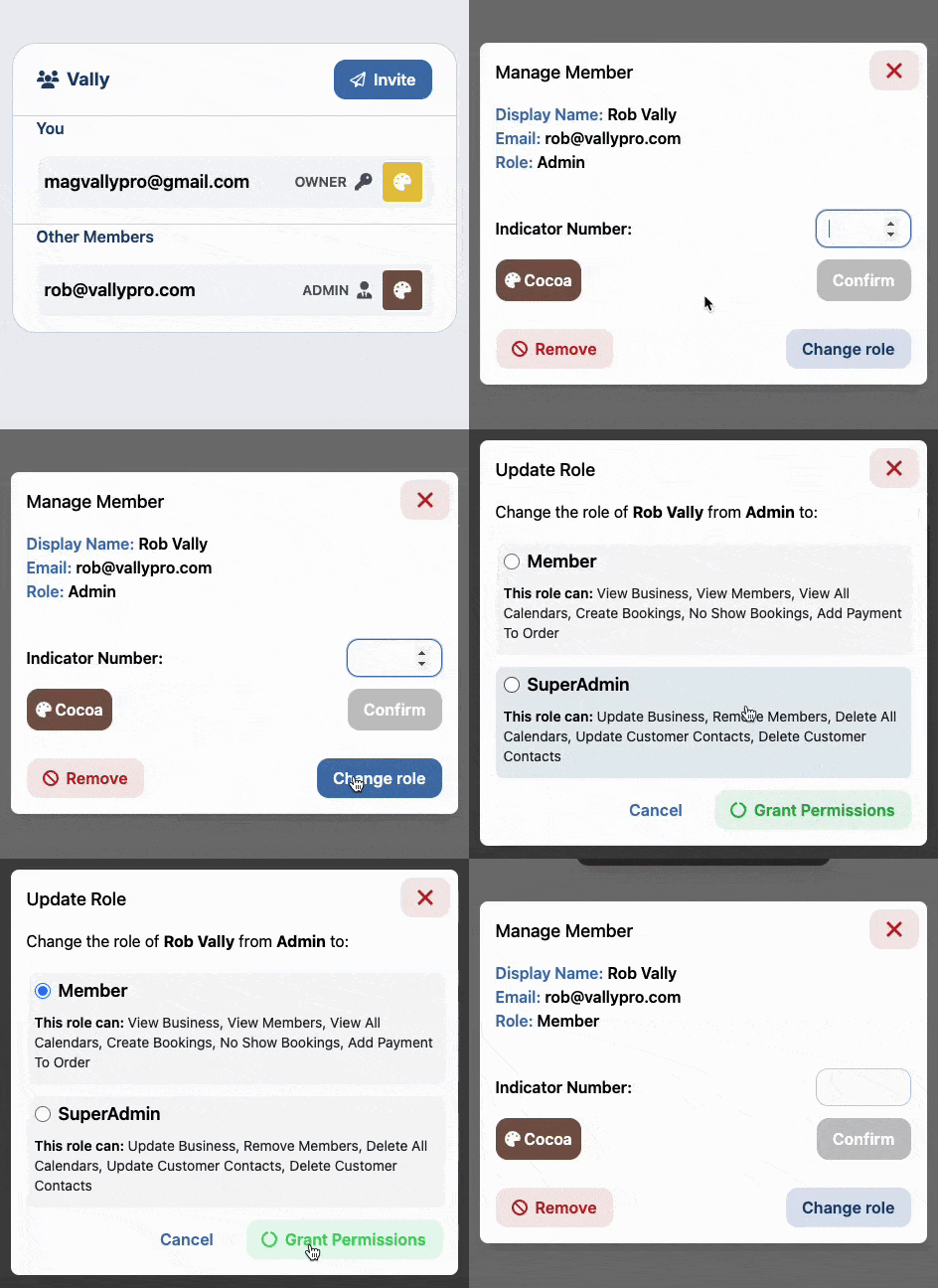
Click a member's email to show the Manage Member screen. Here you can change their calendar color, add an indicator number or change the role.
To change a member role, click the "change role" button, select the new role, then click "Grant Permission".
Guide Preference
This feature allows customers to indicate a preferred guide for their booking. While it does not guarantee the guide’s assignment, it informs the business of the customer’s preference. By default, this option is disabled and most businesses leave it off.