
Add a Booking to an Existing Order
Add another booking to an existing Vally order, keep the same order number, and review the updated total and remaining balance.
Playback speed: 1×
The recording could not be played. Please try again.
Use Add Booking when you need to add another booking to an order that already exists. Vally keeps the order number and adds the new booking to that order’s total and remaining balance.
Use Create an Invoice only when you need a separate order.
Open the right order
- Open Orders, then open the existing order.
- Check the customer and order number before you change it.
- In the booking list, select Add Booking.
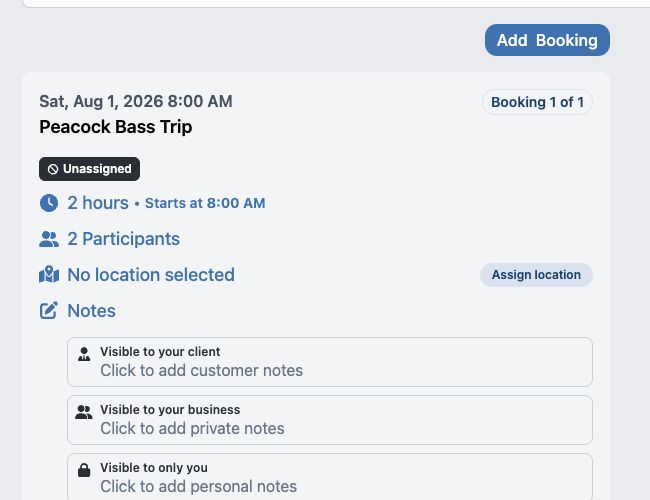
If Add Booking is not visible, ask an admin to check that your role can create bookings and that the business has this feature enabled.
Add the booking details
- Select the service for the new booking.
- Select the start date and an available time. To enter a different time, select Custom Time. The end must be after the start.
- Enter at least one participant or ticket when the service shows a participant or ticket count.
- Select the required resources and staff assignments.
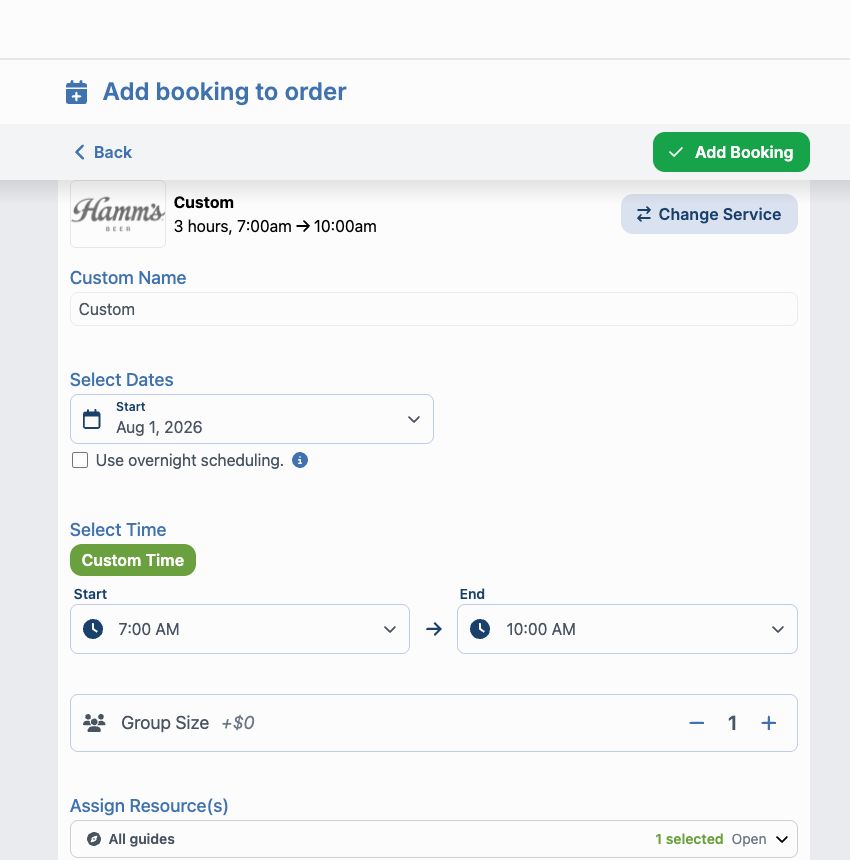
The resource panel may show Checking availability… while it refreshes. It does not show a separate available message. Confirm that the selected resource group shows its selected count and no conflict or unavailable message. If Vally marks a resource with a conflict or unavailable message, choose another time or resource before you add the booking.
- Review the price, add-ons, taxes, address, and notes. Customer notes appear on the customer’s order. Private notes are visible only to the business and assigned guides.
- Select Add Booking.
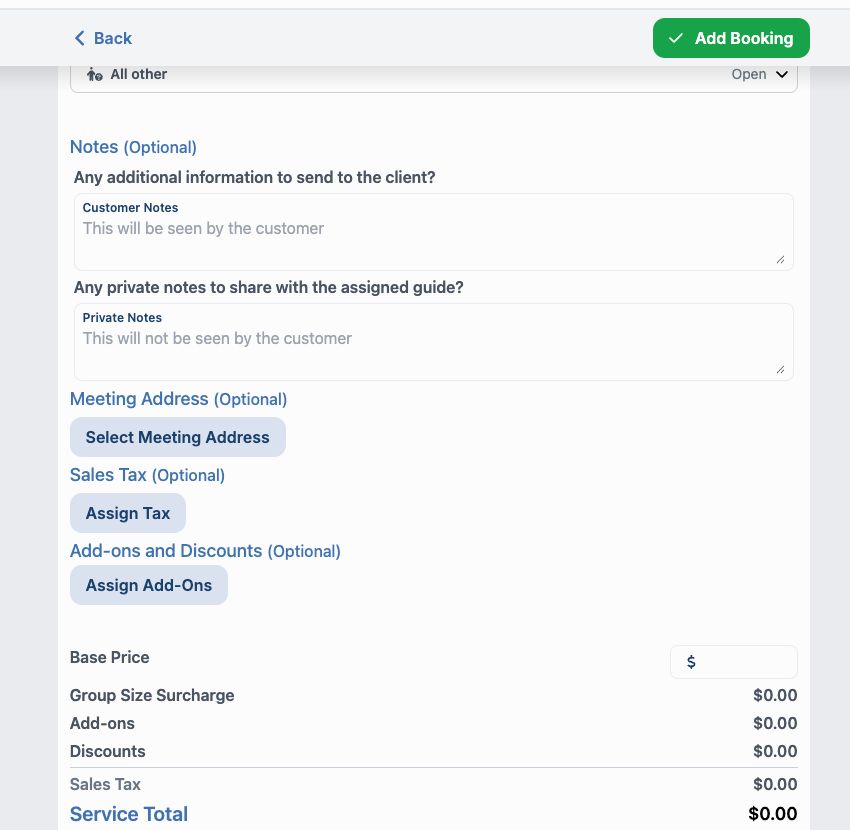
The Add Booking button stays unavailable until you select a service and valid start and end times, and Vally finds no form errors. If Vally shows Could not add booking, correct the message in the form and select Add Booking again.
Check the updated order
After Vally saves the booking, it returns to the same order. Confirm all of the following:
- The order number did not change.
- The new booking appears with the earlier bookings.
- The service, date, time, participants, and assignments are correct.
- The order total and remaining balance include the new booking.
A payment that covered an earlier booking does not pay for the new booking automatically. Review the remaining balance before you collect payment.