Issue a Full or Partial Refund in Vally
Give a customer a full or partial refund in Vally. Select bookings, enter a refund amount, and decide whether to clear the remaining balance.
Playback speed: 1×
The recording could not be played. Please try again.
To give a customer a partial refund in Vally, open their order and select Order Actions, then Issue a refund. Choose Partial, select the bookings to refund, and enter the amount to return. Choose Full to refund the selected payment’s full refundable amount.
Before processing the refund, review the available refundable amount and whether to set the booking’s remaining balance to $0. Follow the steps below to choose the refund reason and review the details.
How to Issue a Refund
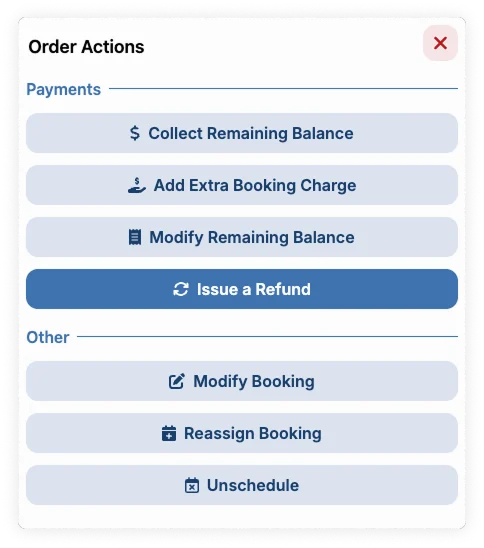
- On the booking you want to refund, click “Order Actions” button, and then select “Issue a refund”
- Select who requested the refund:
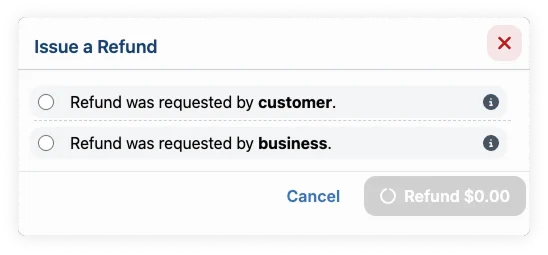
- Requested by customer: A cancellation of the service by your customer within the bounds of your cancellation policy. Fees are not returned to the customer.
- Requested by business: Your inability to provide the service the customer reserved. Common examples are inclement weather, equipment malfunctions, or staffing issues. All fees are returned to the customer, and Vally absorbs the loss in returned processing fees so you don’t have to.
- Choose the refund type:
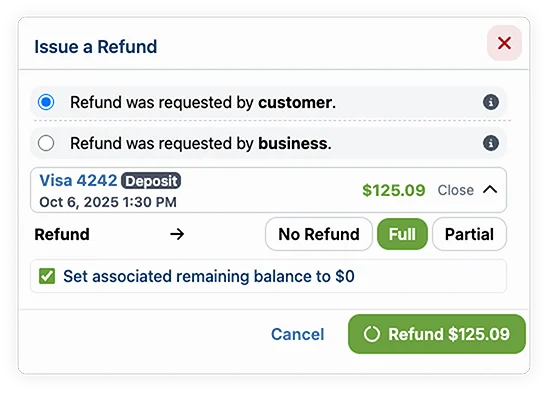
- Full: Refunds the selected payment’s full refundable amount automatically
- Partial: Allows you to customize the refund by selecting specific bookings and entering a custom refund amount
- If you selected Partial, you can:
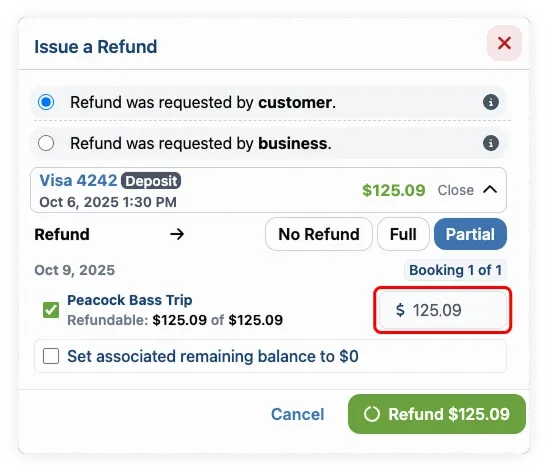
- Select which specific bookings you want to refund by checking the appropriate boxes.
- Enter the exact refund amount in the input field.
- Review the available refundable amount (for example, “Refundable: $125.09 of $125.09”).
- If you selected Partial, you can:
- Optional: Check “Set associated remaining balance to $0” if you want to zero out any future charges for this booking.
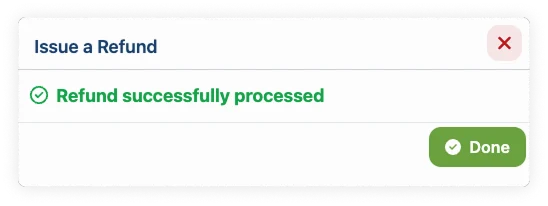
- Review the refund details and click “Refund” button to process.