
Invite staff and manage roles
Invite staff to Vally, choose their access level, and manage member roles and permissions without giving everyone full admin access.
Playback speed: 1×
The recording could not be played. Please try again.
Invite each staff member to your Vally business with a role that matches their work. Start with Member for staff who need booking access without full admin permissions.
Open Business → Business Settings → Members to invite staff and change their roles. You need permission to invite members or manage member roles to use those controls.
Choose a staff role
Vally starts businesses with these default roles:
| Role | Default access |
|---|---|
| Member | Create bookings and orders, record payments, check in guests, and view or update assigned bookings. Manage blackouts on their own calendar. |
| Admin | Member access plus broader booking and calendar management, booking assignments, charges, refunds, and order add-ons. |
| Super Admin | Admin access plus invitations, member roles, activity configuration, customer management, email content, and business settings. |
| Owner | Complete business access, including permissions reserved for the owner. |
By default, Admin does not include managing staff roles, configuring activities, or editing email content. Member does not include refunds or marking bookings as no-shows.
Roles may have been customized for your business. A role’s name alone does not guarantee its permissions. When role management is enabled, review the role’s permissions under Roles before assigning it.
Invite new members
- On Members, select Invite.
- Enter the staff member’s email address in Send email to.
- Choose the role that gives them the access they need.
- Select Invite to send the invitation.
The staff member must accept the invitation from their email. After they accept, confirm that they appear in the member list with the intended role. You can then assign them to bookings.
The invitation lists only roles you are allowed to assign. If Invite is unavailable, ask the business owner to review your permissions.
Manage member roles
- On Members, select the staff member to open their details.
- Select Change role.
- Choose the new role, then select Grant Permissions.
Check the member list for the updated role. Change role is disabled when you cannot manage that member’s role. Super Admins can manage ordinary roles, while the owner can also manage Super Admins.
Create a custom role
Create a custom role for staff who need a particular set of permissions. You can assign that role to everyone who does the same work.
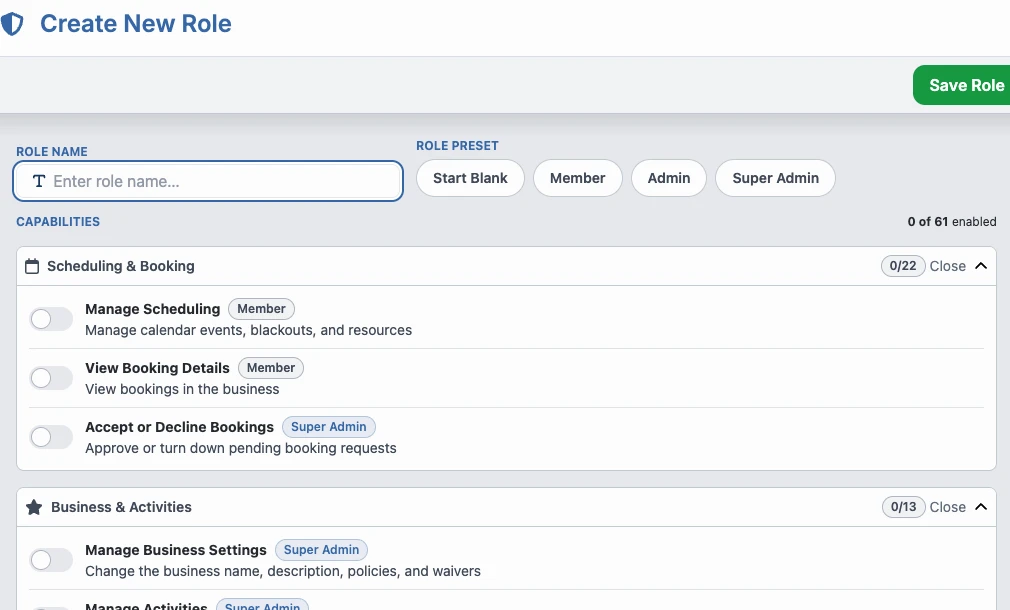
If your business has role management enabled and you have permission to manage roles, the Members page includes a Roles section.
- Under Roles, select New role.
- Enter a descriptive Role name.
- To use a preset, select a Role preset, then select Apply.
- Under Capabilities, enable the permissions that this role needs, including the available calendar or booking scope.
- Select Save Role.
- Assign the new role to staff using Change role.
To update an existing role, select Edit beside it under Roles. Changes affect every member assigned to that role.
If Roles is missing, role management may not be enabled for your business or you may lack permission. Ask the business owner to check your access.
Guide preference
The Allow guide preference? option lets customers request a preferred guide while booking. The preference does not guarantee that guide’s assignment. It is disabled by default and does not change staff permissions.