
Set Up Your Stripe Terminal Reader
Connect your pre-registered Vally Stripe Terminal reader to power and Wi-Fi, finish updates, and check connection diagnostics if it cannot connect.
Playback speed: 1×
The recording could not be played. Please try again.
Vally registered your reader before delivery. You only need to connect power and Wi-Fi.
Resources Set up BBPOS WisePOS E
Set up BBPOS WisePOS ETurn on the reader
- Follow the package leaflet to install the battery if required.
- Connect the reader to power using the provided cable.
- Hold the power button on the right until the screen turns on.
- Leave the reader powered on and connected to power for automatic updates.
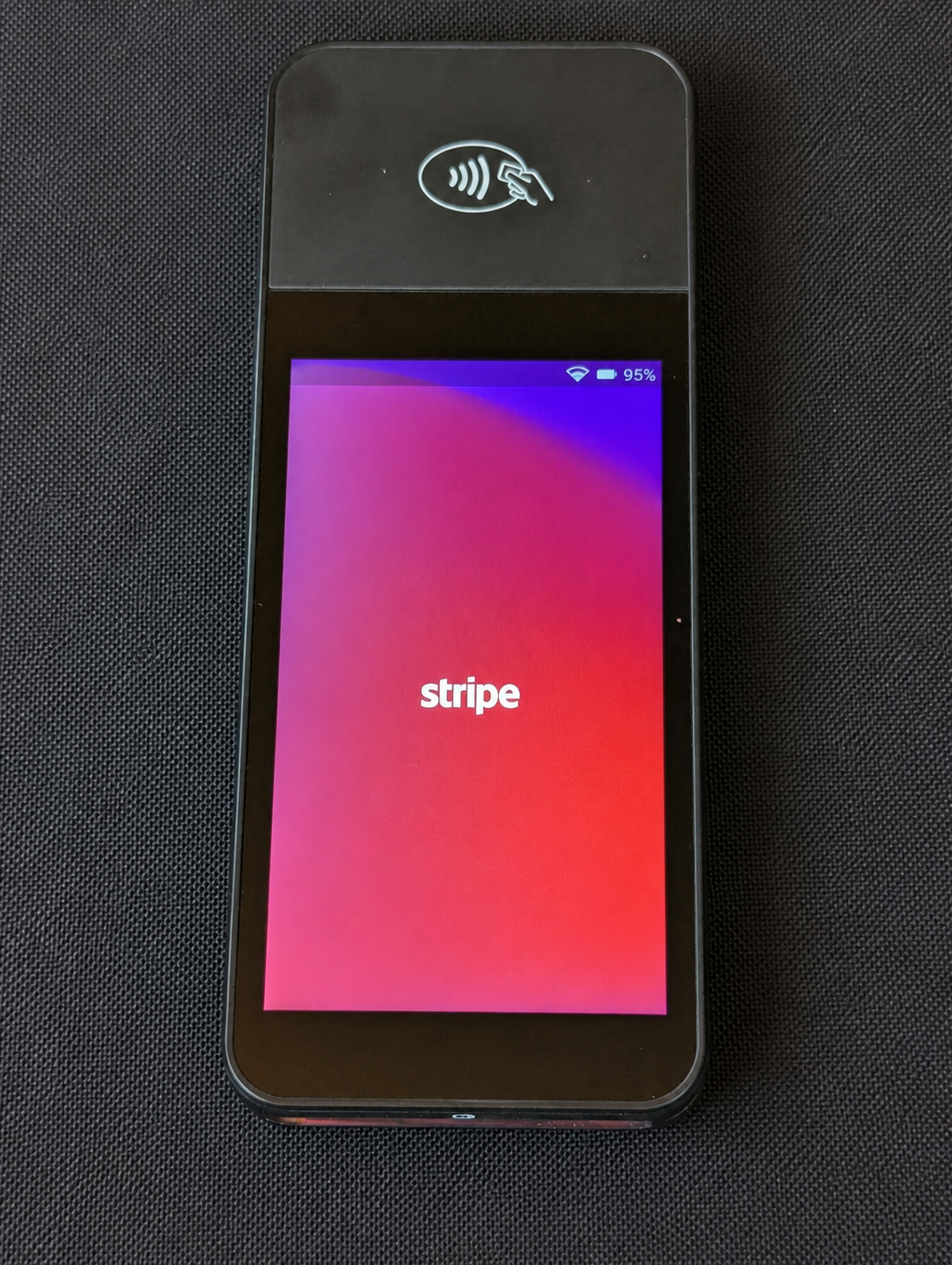
Connect to Wi-Fi
- Swipe right from the left edge of the screen.
- Select Settings and enter admin PIN
07139. - Select Wi-Fi settings and connect to the operating location’s network.
- Confirm the Wi-Fi icon appears at the top of the screen.
Finish setup
- Wait for updates to finish. Do not turn off the reader during an update.
- Return to the welcome screen.
- Tell your Vally contact the reader is online so they can verify it.
Do not register the reader or generate a pairing code.
If the reader cannot connect, open Settings -> Diagnostics. Confirm DNS resolution, Stripe connectivity, and Terminal events connectivity pass. Send any failed result to Vally Support.