
Why won't my booking show on the calendar?
Check calendar filters, blackouts, and Google Calendar sync settings when a booking is missing from your Vally calendar.
If a booking is missing from your calendar, it is usually caused by one of a few simple settings. Follow the steps below to quickly locate and restore it.
1. Make Sure the Correct Calendar Is Turned On
The most common reason a booking does not appear is that the calendar view is not active.
How to Check:
- Go to your Calendar or Dashboard page.
- In the top-right corner, click the Calendar Options dropdown.
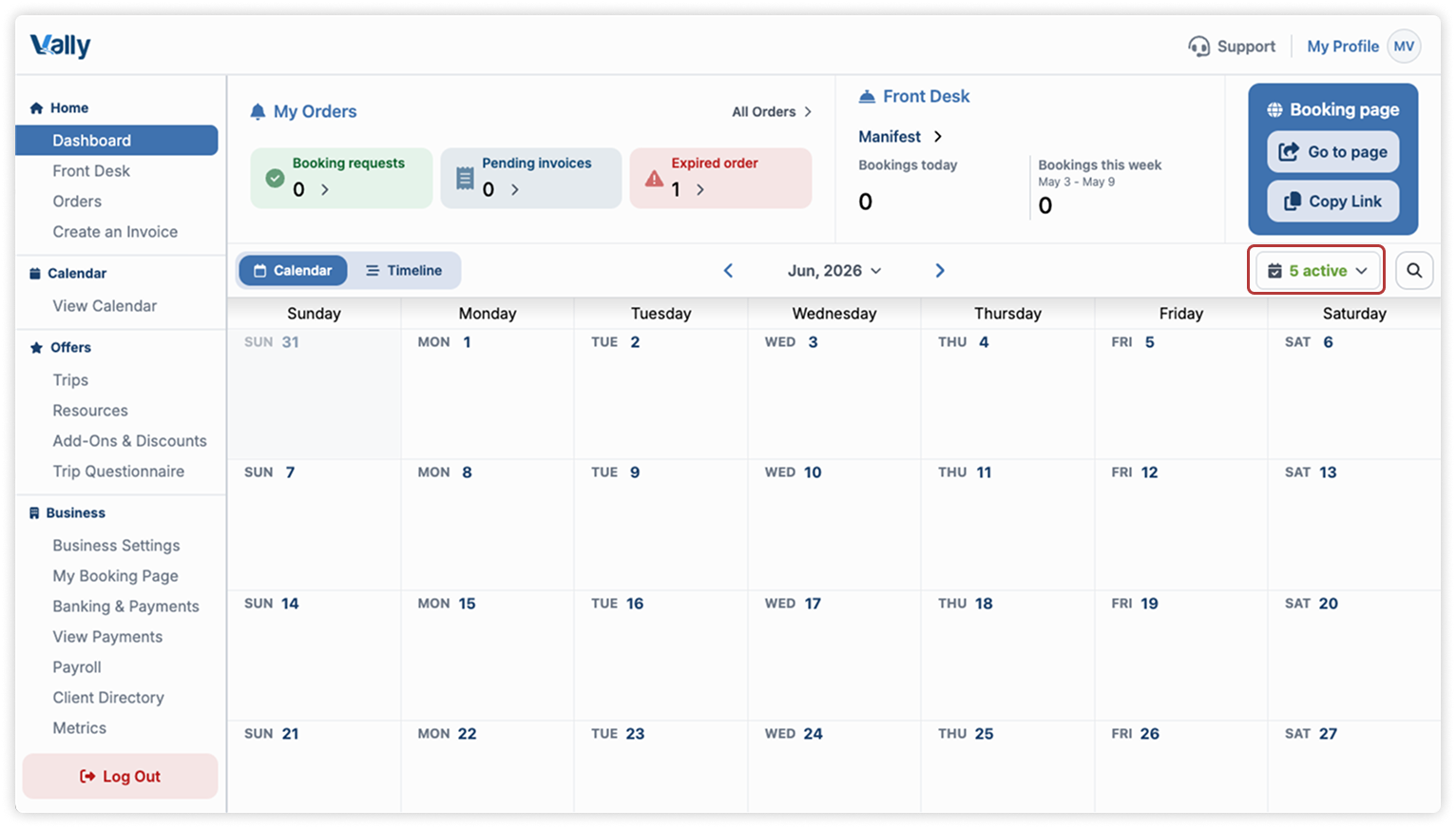
- Review the list of calendars.
- Make sure the calendar tied to the booking is checked on.
Once enabled, the booking should immediately appear.
2. Turn Blackouts Back On
If blackout dates or blocked times are missing, they may simply be hidden in the same calendar filter area.
How to Check:
- Click the Active Calendars button in the top-right corner.
- Locate the Blackouts option.
- Make sure it is enabled.
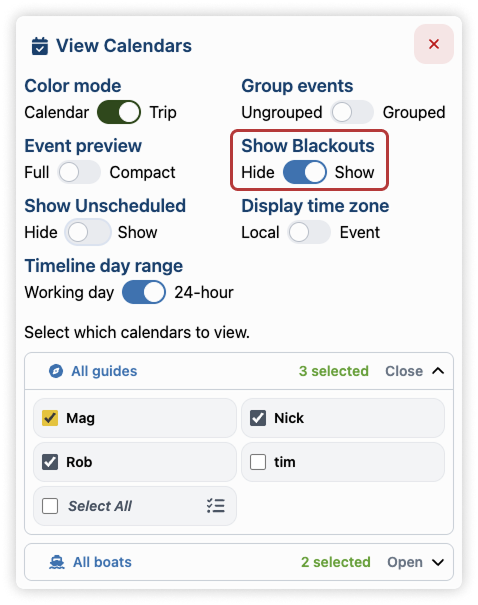
Sometimes users disable blackouts temporarily while reviewing availability and forget to turn them back on.
3. Check for Google Calendar Sync Changes
If your calendar is synced with Google Calendar, changes made inside Google Calendar will reflect back into Vally.
If You Move an Event in Google Calendar
Example: a booking scheduled for June 1 is moved in Google Calendar to June 14.
Result:
- The event moves on the Vally calendar to June 14.
- Booking details will still reference the original June 1 reservation.
- This can cause confusion with reminders, communications, and booking data.
If You Delete an Event in Google Calendar
Result:
- The booking disappears from the Vally calendar.
- The booking is not deleted from the database.
- It is only removed from calendar visibility.
4. Make Updates in Vally First
Every time you make an update inside Vally, the connected Google Calendar event is rewritten with the latest Vally information.
If you manually edit the Google Calendar event by changing notes, descriptions, titles, customer details, or other event content, those changes can be overwritten the next time anything is updated inside Vally.
Best practice: always make edits inside Vally first.
That includes:
- Customer information
- Booking notes
- Internal notes
- Date and time changes
- Reservation details
Vally should be treated as the source of truth, while Google Calendar is best used as a viewing layer.
5. Restore a Booking Hidden by Google Calendar Changes
If a booking was removed from the calendar, restore it from the Orders page.
How to Restore:
- Go to the Orders page.
- Search using the customer name, booking notes, business notes, or other booking details.
- Open the booking.
- Make any small update, such as editing notes.
This refresh will restore it to the calendar.
Best Practices for Google Calendar Sync
Use View Only permissions when sharing Google Calendar access with team members.
This prevents accidental:
- Event moves
- Event deletions
- Calendar conflicts
Google Calendar works best for:
- Viewing bookings
- Viewing blackouts
- Offline or low-service access
Vally should be used for:
- Editing bookings
- Rescheduling
- Updating customer information
- Managing reminders and booking logic
Quick Summary
If a booking is missing:
- Check if the calendar is active.
- Turn blackouts back on.
- Review Google Calendar changes.
- Restore the booking from the Orders page if it was removed by sync changes.
Most missing bookings are caused by filters or Google Calendar sync changes and can be fixed in minutes.