
Use Business Metrics
Filter and compare Vally reports for services, resources, add-ons, participants, and taxes.
Playback speed: 1×
The recording could not be played. Please try again.
Business Metrics helps you review bookings, revenue, add-on sales, resource performance, participant totals, and collected taxes.
Open Business Metrics
- In the Portal menu, find Business.
- Select Metrics.
If Metrics is not available, ask an administrator for the View Metrics & Gift Cards permission.
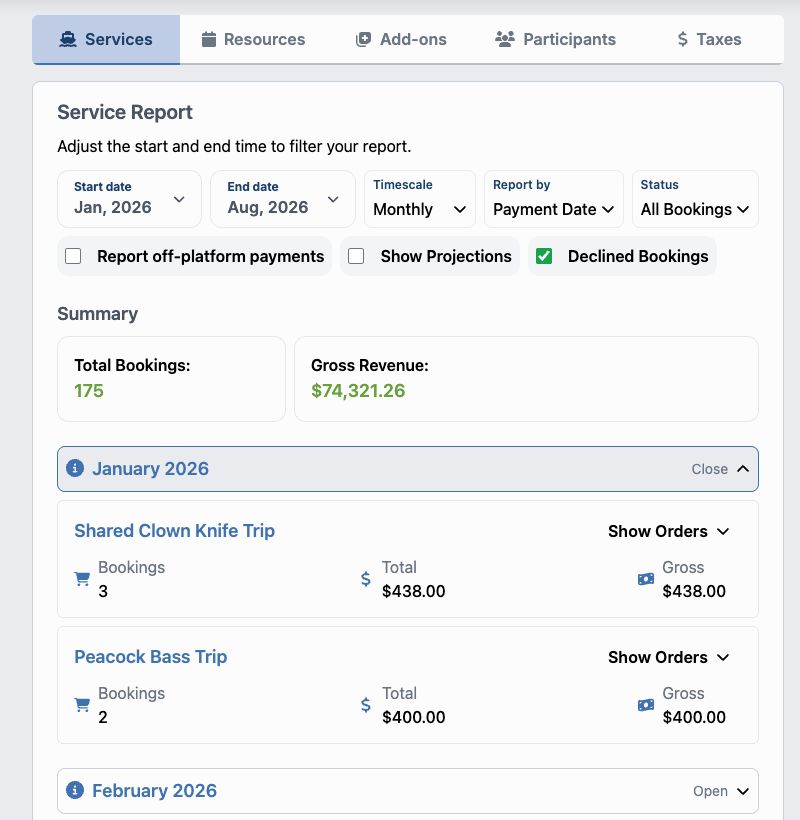
Choose a report
Select a report at the top of the page:
- Services shows bookings and revenue by activity.
- Resources shows revenue associated with assigned team members and resources.
- Add-ons shows quantities and revenue for add-ons and discounts.
- Participants shows participant quantities and revenue by participant type.
- Taxes shows the tax collected for each configured tax. These figures are for reference and are not tax advice.
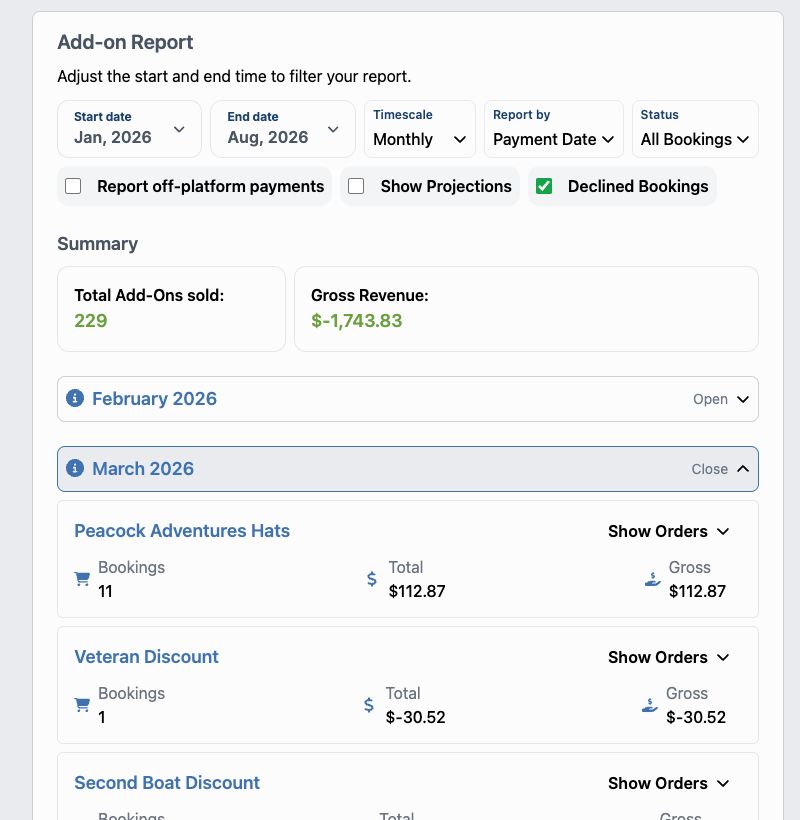
Filter the report
Use the controls above the summary to choose what the report includes:
- Set the Start date and End date.
- Set the Timescale to Daily, Monthly, or Yearly. This controls how the results are grouped.
- Use Report by to group results by:
- Service Date: when the activity takes place.
- Payment Date: when payment is received.
- Funds Available Date: when the payment funds become available.
- Use Status to show All Bookings, Scheduled bookings, or Unscheduled bookings.
- Turn on any additional information you need:
- Report off-platform payments includes payments recorded in Vally that were collected elsewhere.
- Show Projections adds projected revenue where the selected report supports it.
- Declined Bookings includes declined bookings and shows gross figures in the summary.
Your filters carry across the report tabs, making it easier to compare the same period in different ways.
Review the results
The Summary shows the main total for the selected report, such as bookings, items sold, participants, or revenue.
Open a date period to see its activities, resources, add-ons, participants, or taxes. When Show Orders is available, select it to see the orders behind that result. Select an order number to open its order details.
If the report says No results for this timeframe, check the date range, Report by, and Status selections.
Export the report
Select Export as CSV to download the filtered report. If the arrow beside the button is available, your business may also have Gift Card or QuickBooks exports.
Downloading reports requires the Download Reports permission.
What happens next
Metrics update as soon as you change a filter; there is nothing to save. Use the on-screen summaries for a quick review or the CSV export for bookkeeping and deeper analysis.