
Send and Manage a Payment Link
Send a customer a secure link for a remaining balance or custom charge, then track the request from the order.
Playback speed: 1×
The recording could not be played. Please try again.
Payment links let a customer pay through a secure checkout page. You can send one in two ways:
- Automatic: Send a remaining-balance link with scheduled customer booking reminders.
- Manual: Send a link now for a remaining balance or custom charge.
Both methods create a request under Payment requests on the order.
Send links automatically with reminders
To send remaining-balance links automatically:
- Under Business, select Emails.
- On Customize Emails, select Email Settings.
- Under Customer Reminder Days, choose when Vally should email customers before their bookings.
- Turn on Send payment link emails with reminders.
- Select Save changes.
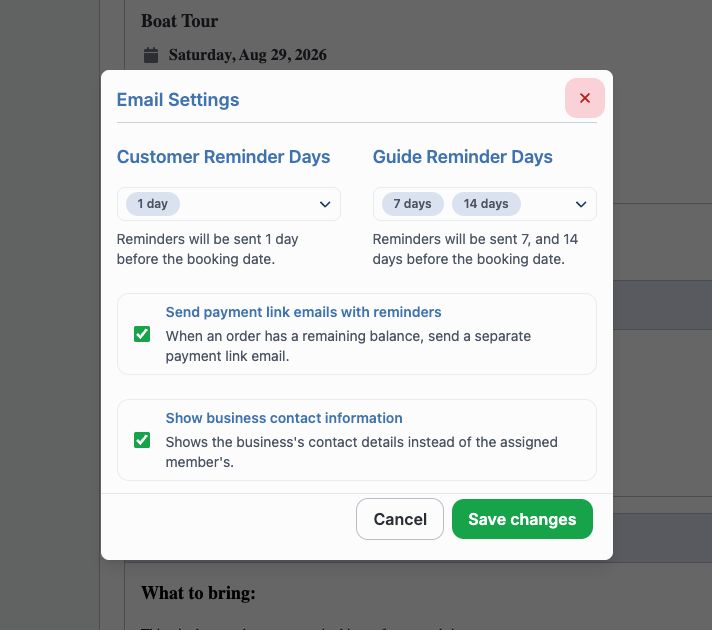
Saving this setting does not send a link right away. On each Customer Reminder Day, Vally sends the normal booking reminder. It then checks the active bookings in that reminder for an unpaid balance.
If a balance remains, Vally creates or reuses a request for that amount. It sends the order customer a separate payment link email.
Vally does not send the payment link email when no balance remains or the order customer has no email address. Custom-charge links are never automatic.
Manually send a payment request
Use this method when you need to send a link now or collect a custom charge.
- In Orders, open an accepted order whose deposit has been collected.
- Select Send Email, then select Request a Payment.
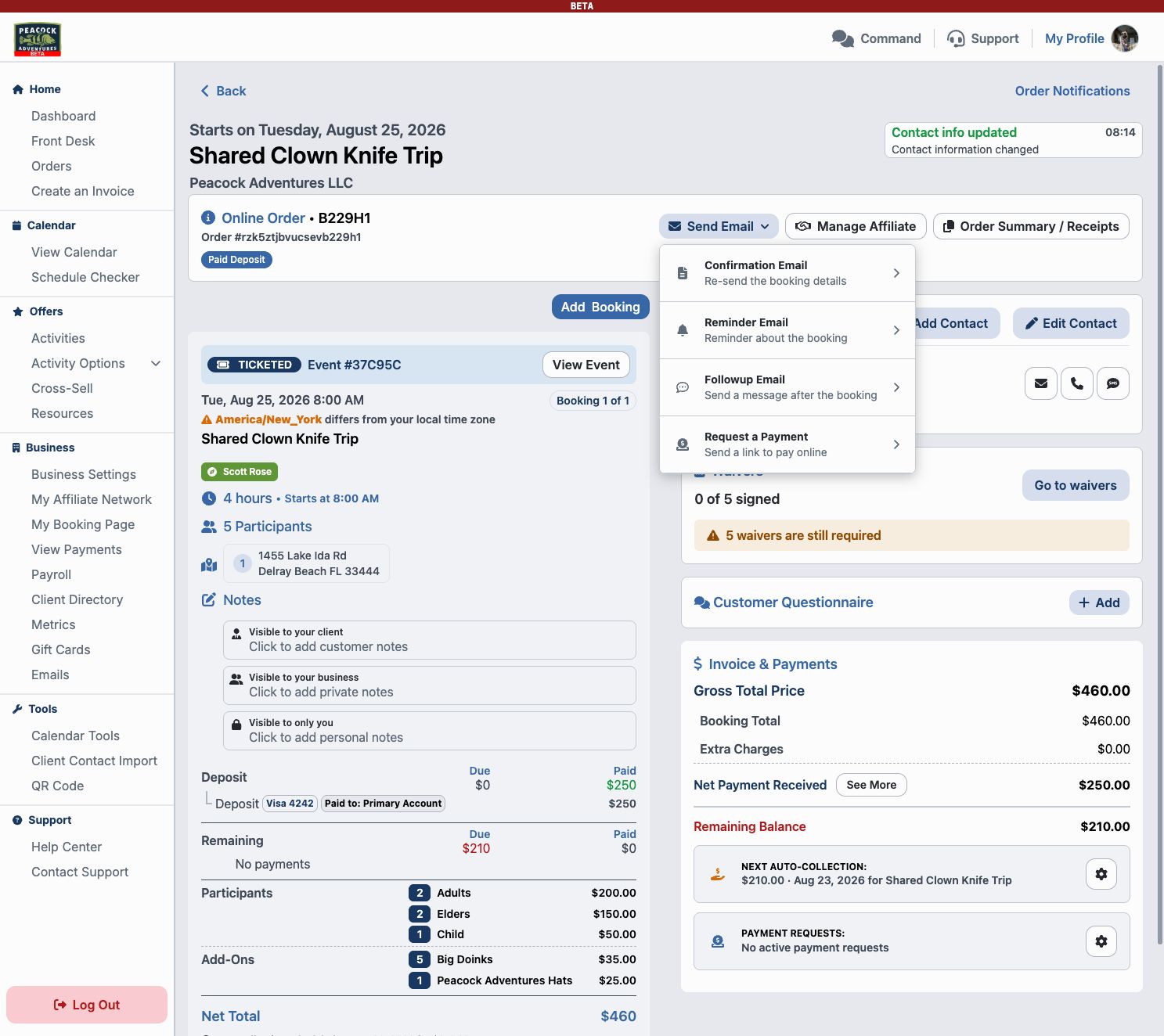
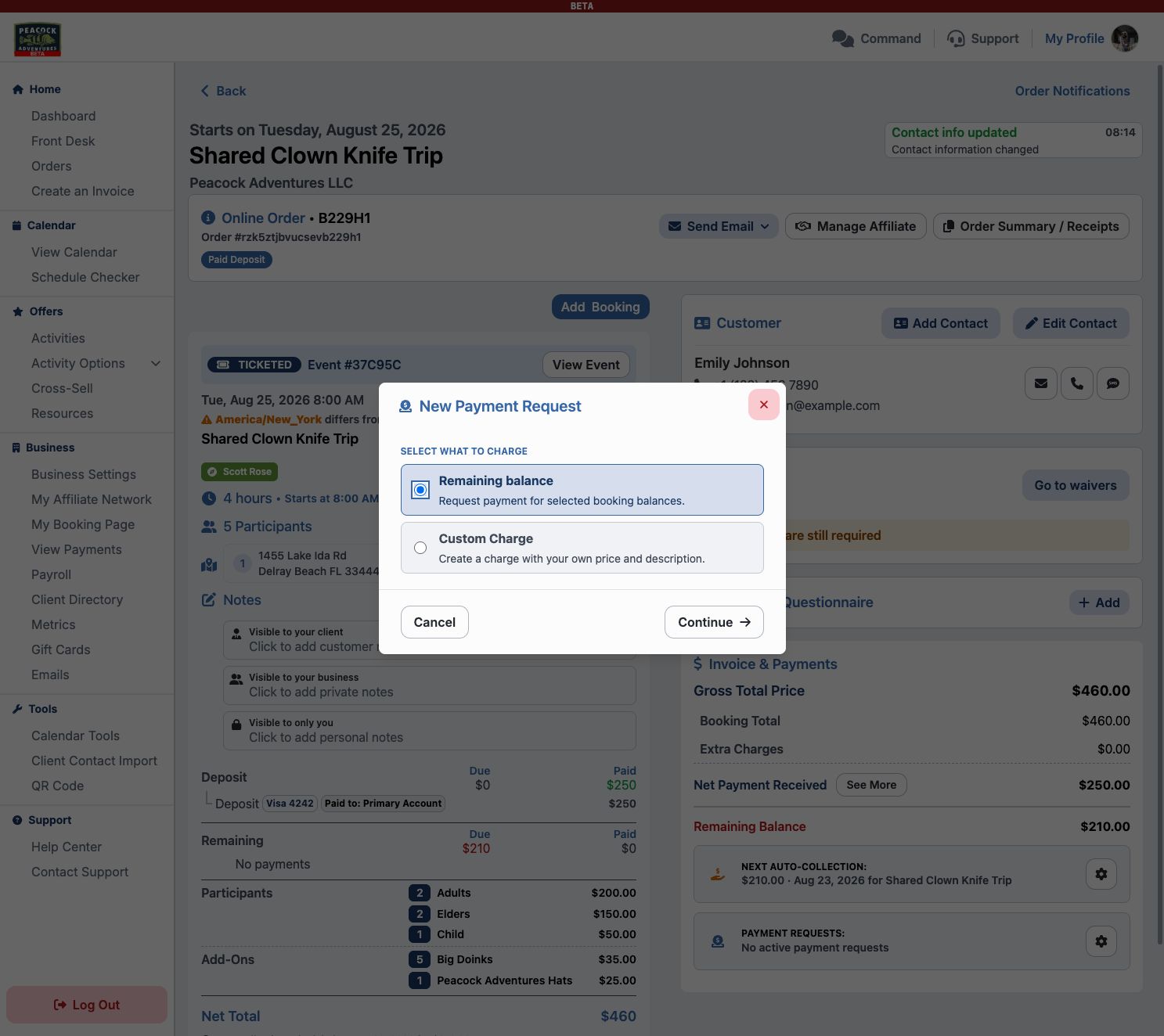
- Choose what to collect:
- Remaining balance collects all or part of the unpaid balance from the bookings you select.
- Custom Charge collects an amount you enter for a specific item or service.
- Select Continue.
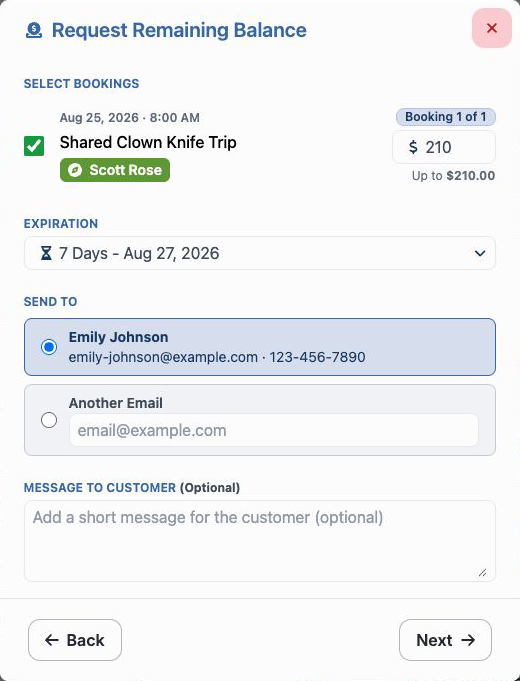
For a remaining balance, select the bookings and amounts to include. If another active link already requests part of a booking’s balance, Vally leaves that amount out so you cannot request it twice.
For a custom charge, enter a description and amount. Turn on Allow gratuity if the customer may add a tip. Remaining-balance requests already let the customer add a gratuity.
Choose the delivery details
- Choose when the link expires.
- Under Send to, select either the order customer or Another Email. Each request goes to one email address.
- Add an optional message for the customer.
- If Next appears, select it and choose the account that should receive the payment.
- Select Create & Send. If Next did not appear, this button is on the current form.
Vally creates the request and emails the link. The confirmation shows the amount, delivery status, and link. If the email fails, select Retry email or copy the link and share it another way.
The customer reviews the balance, fees, and optional gratuity before continuing to payment. Payment links do not ask the customer to accept the cancellation policy again.
Manage the request
- On the order, find Invoice & Payments.
- Select the Payment requests card.
- Review each active request’s amount, recipient, and expiration date.
- Choose an action:
- Copy link copies the active link.
- Resend emails the same link to the order customer or one other email.
- To stop the link, select the red trash button, then select Expire link. The amount becomes available for a new request.
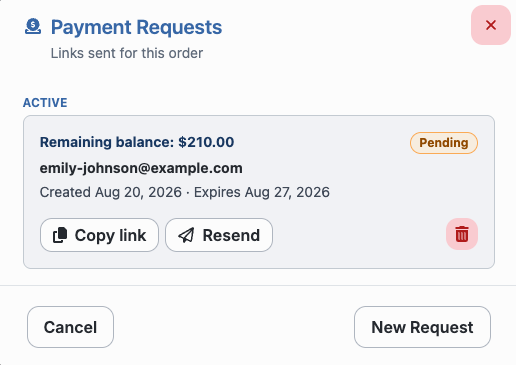
Select Show archived to review paid, expired, and other closed requests. You can restore an expired request only when its booking balance is still available.
After the customer pays, the request changes to Paid. Confirm the payment in both Payment requests and the order totals.
If a link is not sent
If Request a Payment is missing, check that:
- The order is accepted and its deposit has been collected.
- Your business has payment links enabled and an active Stripe account.
- Your role can create payment requests.
For a missing automatic email, check that:
- Send payment link emails with reminders is saved.
- The order customer has an email address.
- An active booking in the reminder still has a balance.