
Add the Vally Booking Widget, Popup, and Book Now Button
Add Vally’s booking widget to your website with a script tag. Set up the Book Now button, booking popup, colors, position, and existing booking links.
Playback speed: 1×
The recording could not be played. Please try again.
Add the Vally booking widget by placing one script tag in your website’s <head> and setting your business slug. The widget adds a floating Book Now button and opens your Vally booking page when customers click it. You can also use your existing booking links to open the booking popup.
If your website is managed through Vally Edge, contact Vally for help with installation.
1. Find your business slug
Open your Vally booking page. Your business slug is the part of the URL immediately after https://book.vallypro.com/p/. For example, the slug in https://book.vallypro.com/p/peacock-adventures is peacock-adventures.
Use the slug from your own booking page. The image below shows where to find it in the address bar.

2. Add the installation script
Copy this script and replace your-business-slug with your business slug:
<script
	src="https://api.vallypro.com/api/embed"
	id="vally-embedded-checkout"
	data-business="your-business-slug"
	defer
></script>
Add the script once inside your website’s <head>. Keep the script URL, id, and defer attribute as shown. The script waits until the page is ready before adding the widget.
A complete minimal HTML page looks like this. Replace the placeholder slug before publishing:
<!doctype html>
<html lang="en">
	<head>
		<meta charset="utf-8" />
		<meta name="viewport" content="width=device-width, initial-scale=1" />
		<title>My tour business</title>
		<script
			src="https://api.vallypro.com/api/embed"
			id="vally-embedded-checkout"
			data-business="your-business-slug"
			defer
		></script>
	</head>
	<body>
		<h1>Book your next adventure</h1>
	</body>
</html>
3. Check the button and booking links
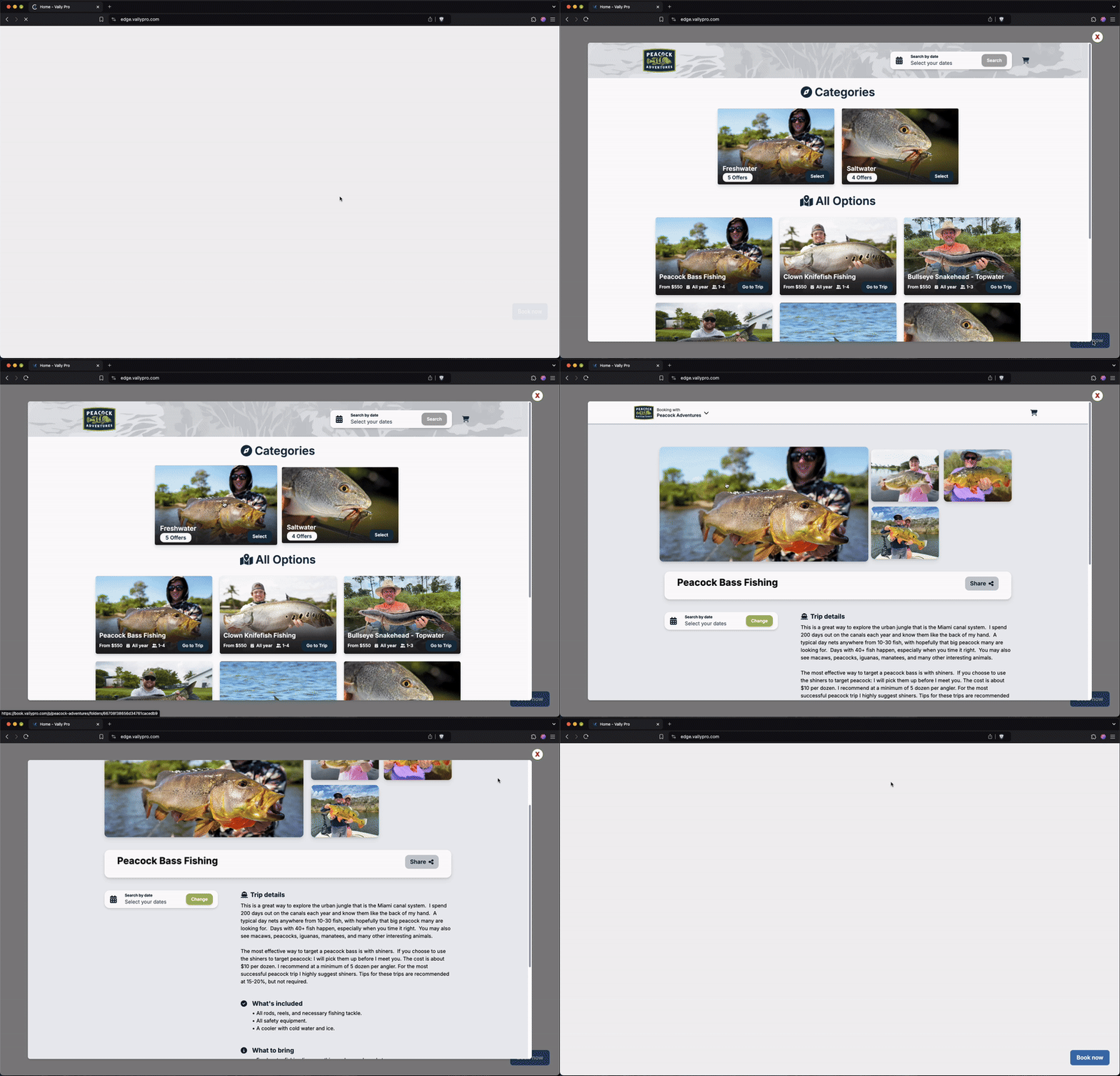
The widget displays a blue Book Now button with white text in the bottom-right corner. On desktop, clicking it opens your booking page in a popup over your website.
The script also handles links on your page that point to https://book.vallypro.com. Those links open their existing destination in the popup when a popup is enabled. Keep the complete booking URL, including the business slug and any trip path.
With the minimal script above, screens narrower than 1024 pixels open the booking page in a new tab. To enable a fullscreen booking popup on mobile, add data-fullscreen="mobile" as shown in the customized example below. The popup is available on both desktop and mobile when configured for that screen size.
4. Customize the widget
Add attributes to the same script tag to change the button text, colors, position, or popup size. This complete example uses a green button labeled Reserve a Tour, places it in the bottom-left corner, and enables a fullscreen popup on mobile:
<script
	src="https://api.vallypro.com/api/embed"
	id="vally-embedded-checkout"
	data-business="your-business-slug"
	data-btn-txt="Reserve a Tour"
	data-btn-txt-color="#FFFFFF"
	data-color="#126A52"
	data-position="bottom-left"
	data-fullscreen="mobile"
	defer
></script>
Button visibility, text, and colors
data-button="false"hides the floating button. Existing booking links still work with the widget.data-btn-txt="Reserve a Tour"changes the button text. The default is Book Now.data-btn-txt-color="#FFFFFF"sets the button text color. The default is white.data-color="#126A52"sets the button background color. The default is#3F72AF, Vally blue.
Button position
Use data-position with one of these values. The default is bottom-right:
top-lefttop-rightbottom-leftbottom-right
Fullscreen popup
Set data-fullscreen explicitly to choose the popup behavior:
trueopens a fullscreen popup at every screen size.mobileopens a fullscreen popup at widths of 1024 pixels or less, and a windowed popup on larger screens.falseopens a windowed popup at widths of 1024 pixels or more. On narrower screens, booking links open in a new tab.
Omitting data-fullscreen currently behaves like false. Use mobile if you want customers to stay in a popup on phones.
5. Verify the installation
After publishing the change, reload your website and check it on desktop and mobile:
- Confirm that the floating button appears with the expected text, colors, and position. If you hide the button, use an existing booking link.
- Click the button or booking link. Confirm that it opens the correct business or trip page, in a popup or a new tab according to your fullscreen setting.
- Close the popup and check that you can scroll your website again. You do not need to complete a booking to test the installation.
If the button does not appear, check that the script is present once in the published page’s <head>, uses the exact script URL and id above, and has a non-empty data-business value. Check that data-button="false" is not hiding it.
If the wrong business opens or the booking page cannot load, compare data-business with the slug in your working Vally booking-page URL. If an existing link does not open in the popup, check that it starts with https://book.vallypro.com and that the script does not set data-interception="false", which disables booking-link handling. A new tab on mobile is expected when fullscreen is omitted or set to false.
To display a calendar directly within your page, follow Embed a Vally calendar on your website.