
Create a Booking from Custom Invoice
Create a Vally order with one or more bookings. Choose the customer, schedule, resources, deposit, and whether to send an invoice email.
Playback speed: 1×
The recording could not be played. Please try again.
Use Create an Invoice to make a new order and add its bookings. Use this flow when you need to choose the customer, schedule, resources, deposit, and invoice delivery yourself.
Choose the customer
- Under Home, select Create an Invoice.
- Select Search Clients to choose an existing customer, or Add New to create one.
- Select the customer. Enter an email address only if you want Vally to send the invoice email.
If Vally shows a similar customer, select the existing record instead of adding a duplicate.
Add a complete booking
- Select Add Service.
- Choose an activity, or choose Custom and enter the booking name the customer will see.
- Choose the date, then select an available time. For a nonstandard time, select Show All Times or Custom Time.
- Set the group size, or select Skip when the activity does not use a group size.
- Under Assign Resource(s), select every resource Vally must reserve. The category shows 1 selected when the assignment is complete.
- Add any needed meeting address, customer note, private note, price, tax, add-on, or discount. Select Done.
The example has a two-hour custom booking for two participants and one selected guide resource.
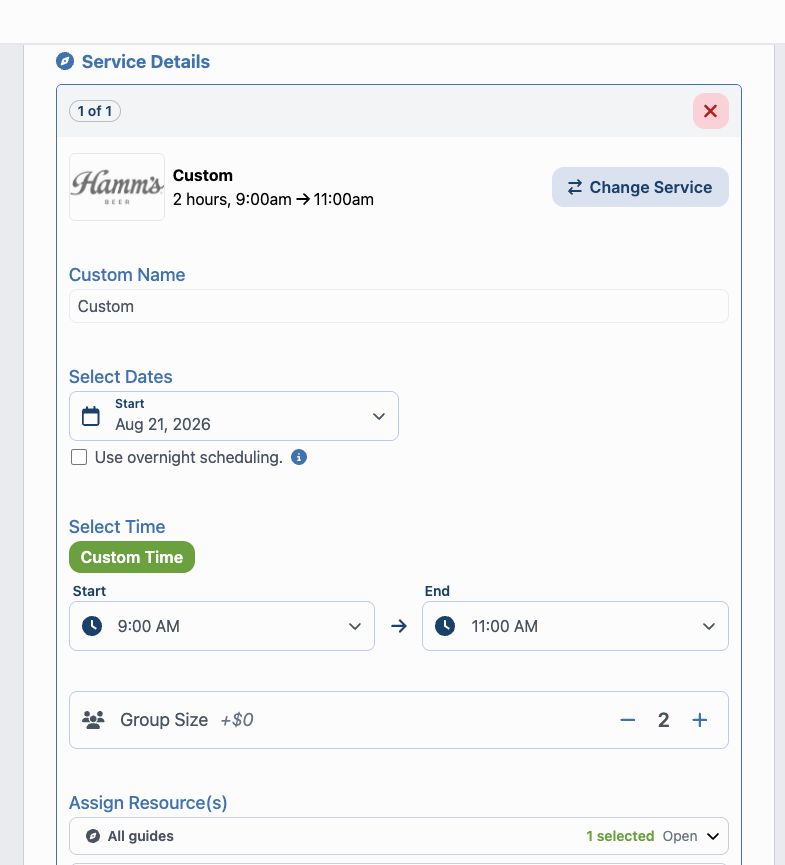
To add another booking, select Add Service. To reuse this booking, select Copy.
Review payment and delivery
Leave Use trip default deposit settings selected to use each activity’s default deposit. Clear it only when this order needs a different deposit.
If the customer has an email address, select Send an invoice email to the customer to have Vally deliver the invoice link. Leave it clear when you will share the order link yourself.
When all required booking details are complete, Review Details becomes available. Select it to check the customer, booking times, assignments, total, deposit, payment choice, and email setting before the order is created.
Create the order
On Review Invoice, check the booking card, payment summary, and email setting. Select Edit to return to the invoice form.
- Select Send Invoice when a deposit remains and you have not selected a payment method. Vally creates the order and leaves that deposit for the customer to pay.
- Select Add Payment when it appears and you need to record a payment before creating the order. This option is available only to members who can create order checkouts and payments, and only when the invoice has a deposit due. Follow the consent prompts before using a customer card.
- Select Submit Order when the deposit is zero or you selected a payment method. The example below has a zero-dollar deposit, so the final button is Submit Order.
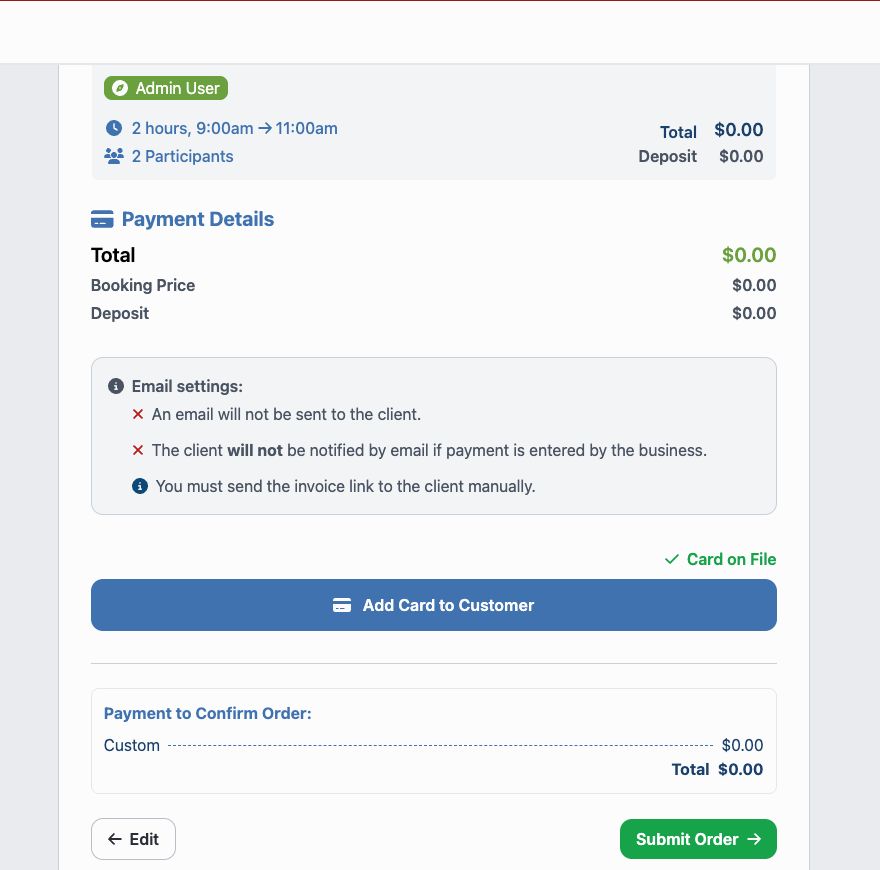
After a successful submission, Vally opens the new order. Confirm the booking date, time, resource assignments, total, balance, payment status, and email delivery. Copy the order link from that order when you need to share it manually.
To return money from a paid order, follow Issue a full or partial refund in Vally.
Fix an incomplete or failed invoice
If the button says Incomplete, complete the missing customer or booking fields. Vally lists invoice errors under Payment Details and marks booking errors in the booking card.
If submission fails, Vally keeps you on Review Invoice and shows the error. Select Edit to correct the invoice, then review and submit it again.