
Set Up Activities
Create or review an activity, then configure its details, assignments, availability, pricing, and booking requirements.
Playback speed: 1×
The recording could not be played. Please try again.
Activities are the experiences and services customers can book with your business. Open Offers → Activities to create an activity, review an existing one, or organize activities into folders.
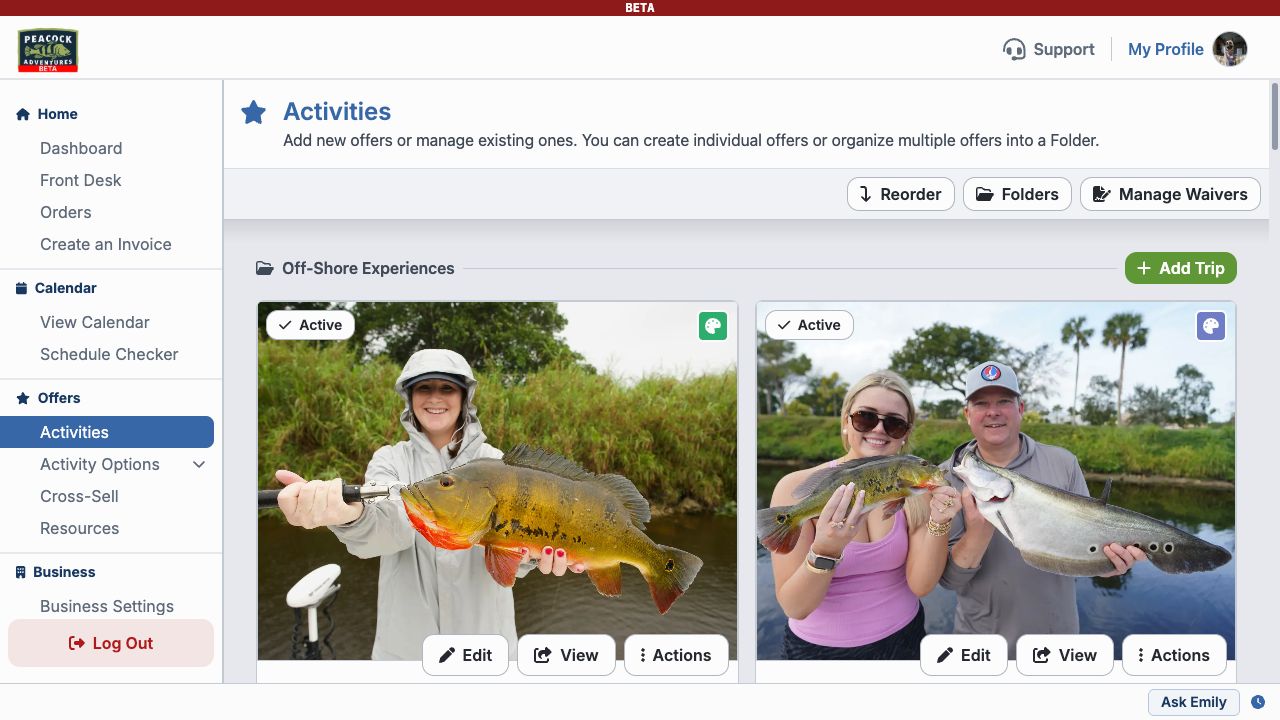
Create or Edit an Activity
- Open Offers → Activities.
- Select Add Trip to create an activity, or select Edit on an existing activity.
- Complete each setup tab. Use Next to move through the tabs, or select Go to Review when you are ready to check your work.
New activities are inactive until you activate them from the Activities page. This lets you finish setup before customers can book them.
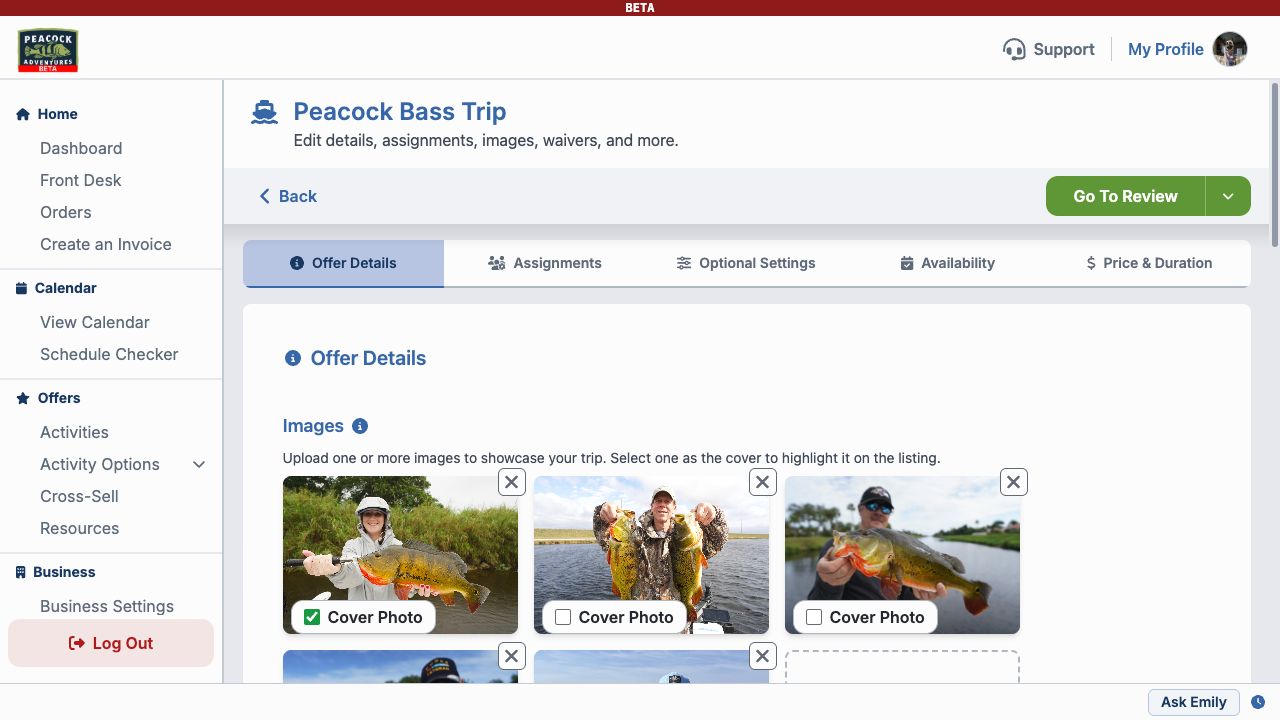
Offer Details
Add the customer-facing basics:
- Upload images and choose a cover photo.
- Enter the title and activity type.
- Add a short card description and the full activity description.
- Add tags for Schedule Checker filters.
- Choose the color shown on your calendar.
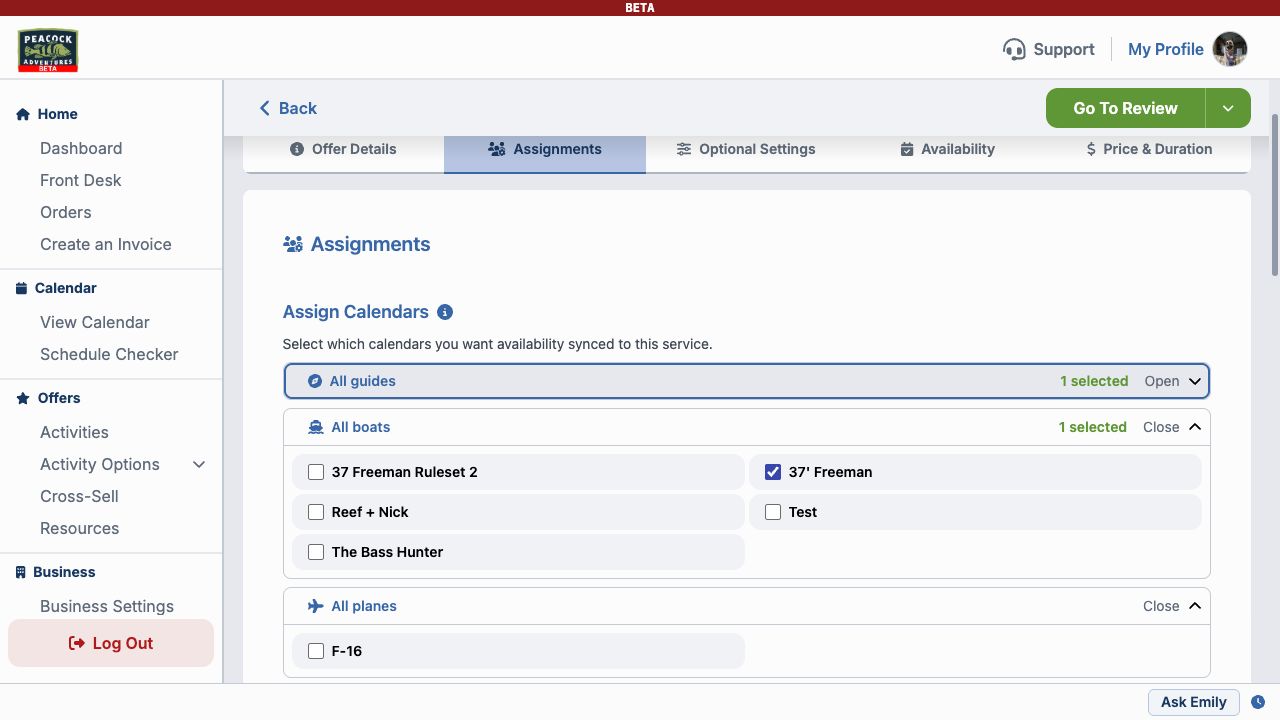
Assignments
Choose the calendars and resources used to check availability for this activity. Depending on your setup, you can also enable ticketing, prioritize automatic calendar assignments, and allow staff assignments.
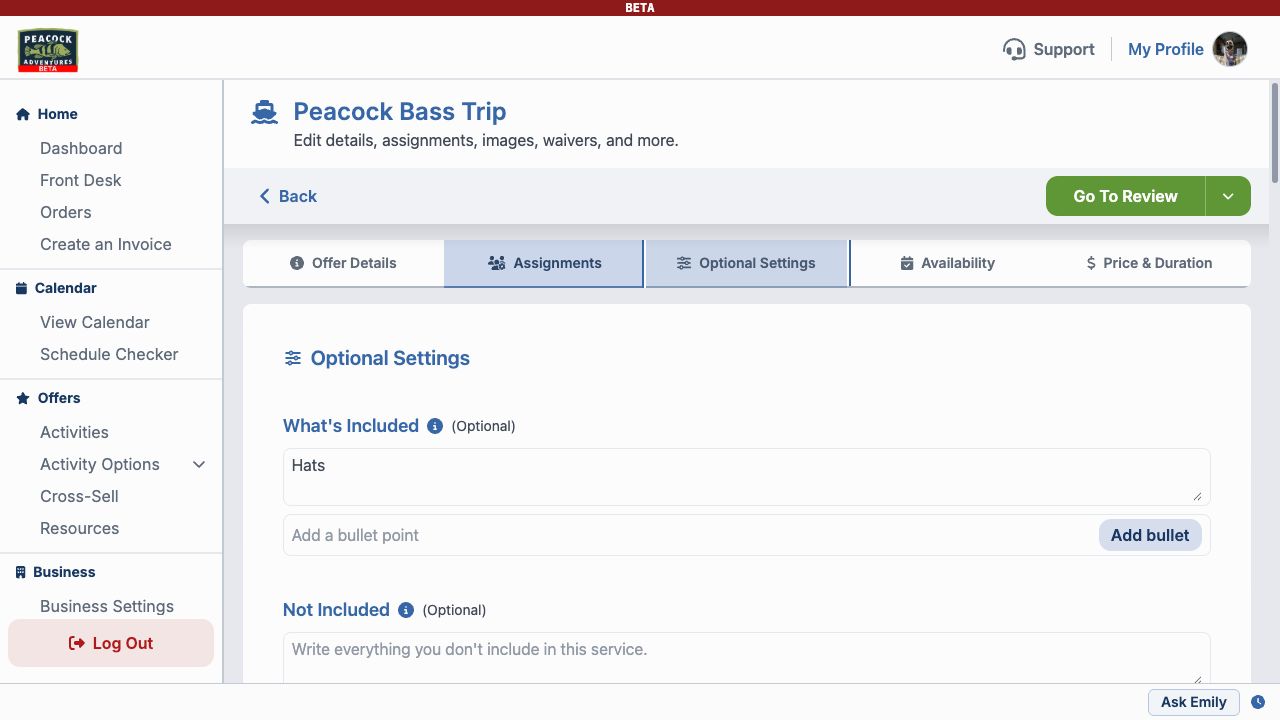
Optional Settings
Add any booking details that apply to this activity:
- What’s included, what’s not included, and what customers should bring
- An important customer notice and meeting address
- Checkout questions and guide closeout questions
- A custom cancellation policy or deposit
- Required waivers
Leave a setting blank or use the business default when it does not need activity-specific rules.
To change the cancellation policy or deposit used across your business, open Business Settings → Policies. Follow Set Up Business Policies. Use an activity’s custom settings when that activity needs a different policy or deposit.
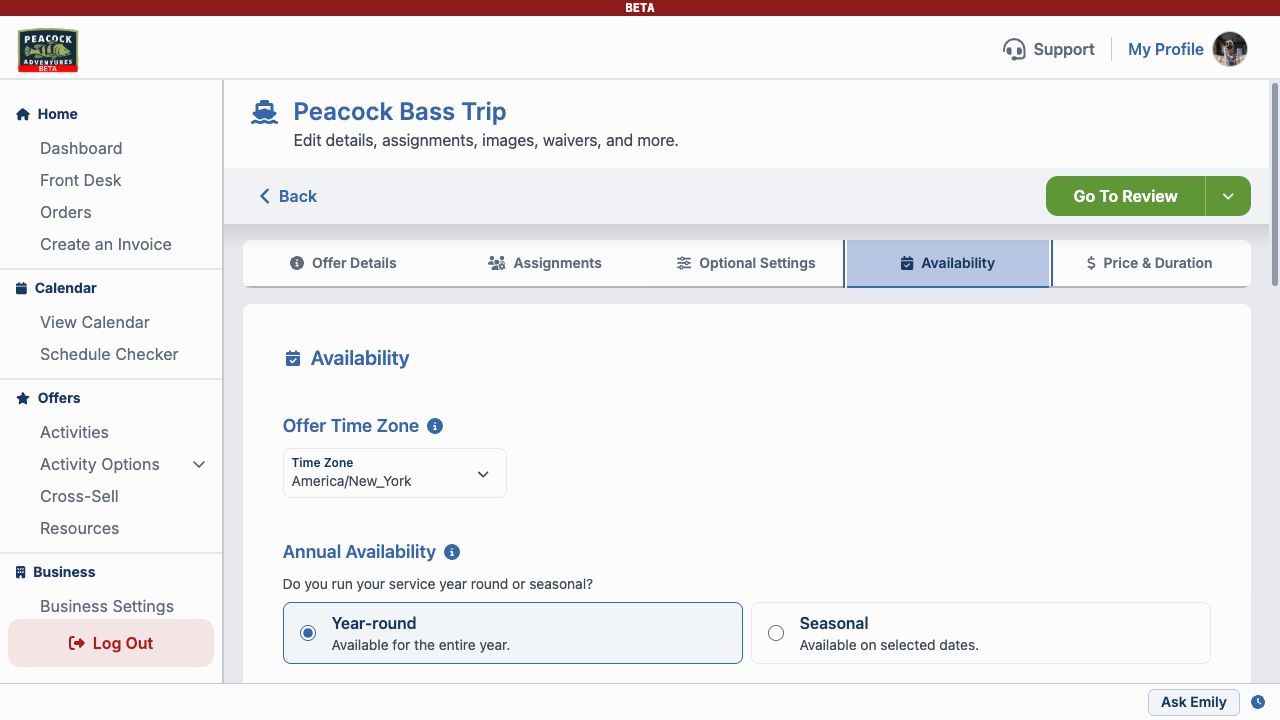
Availability
Confirm the activity’s time zone, then choose whether it runs year-round or seasonally and select its available days of the week. Turn on Overnight Scheduling when customers must select a range of consecutive days.
Use Restrictions to control:
- Minimum Age: The youngest participant allowed.
- Minimum Duration: The fewest consecutive days an overnight booking can include.
- Maximum Duration: The most consecutive days an overnight booking can include. Leave this at 0 when there is no maximum.
Turn on Call to Book Only when customers should see your phone number instead of prices and booking options.
Price & Duration
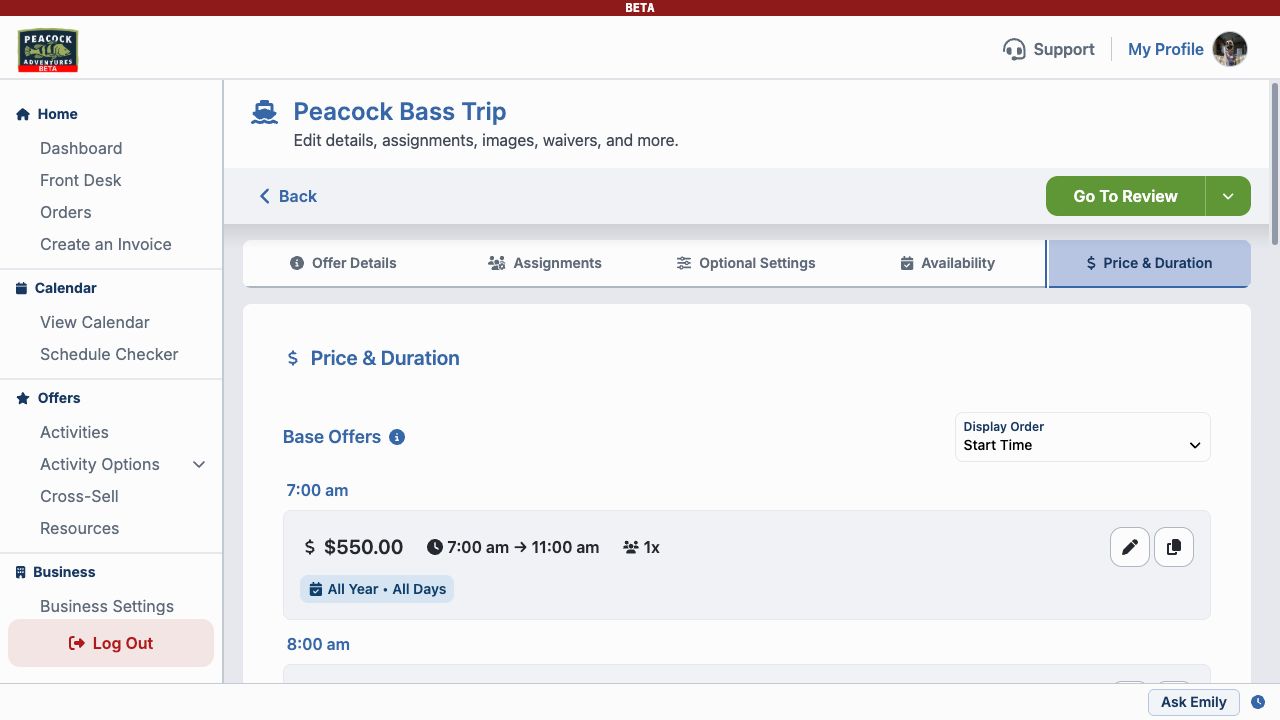
Add at least one base offer with a price, start time, duration, and availability. Use additional offers when customers can choose between different times, durations, or prices.
You can also assign sales tax, set group-size limits, and configure any additional group-size or resource pricing.
Group-size prices are the total amount added to the base offer for each exact group size. For example, an activity costs $300, includes up to 2 people, allows up to 5, and costs $40 for each additional person. Set the additional charges to:
- 2 people: $0
- 3 people: $40
- 4 people: $80
- 5 people: $120
Review and Save
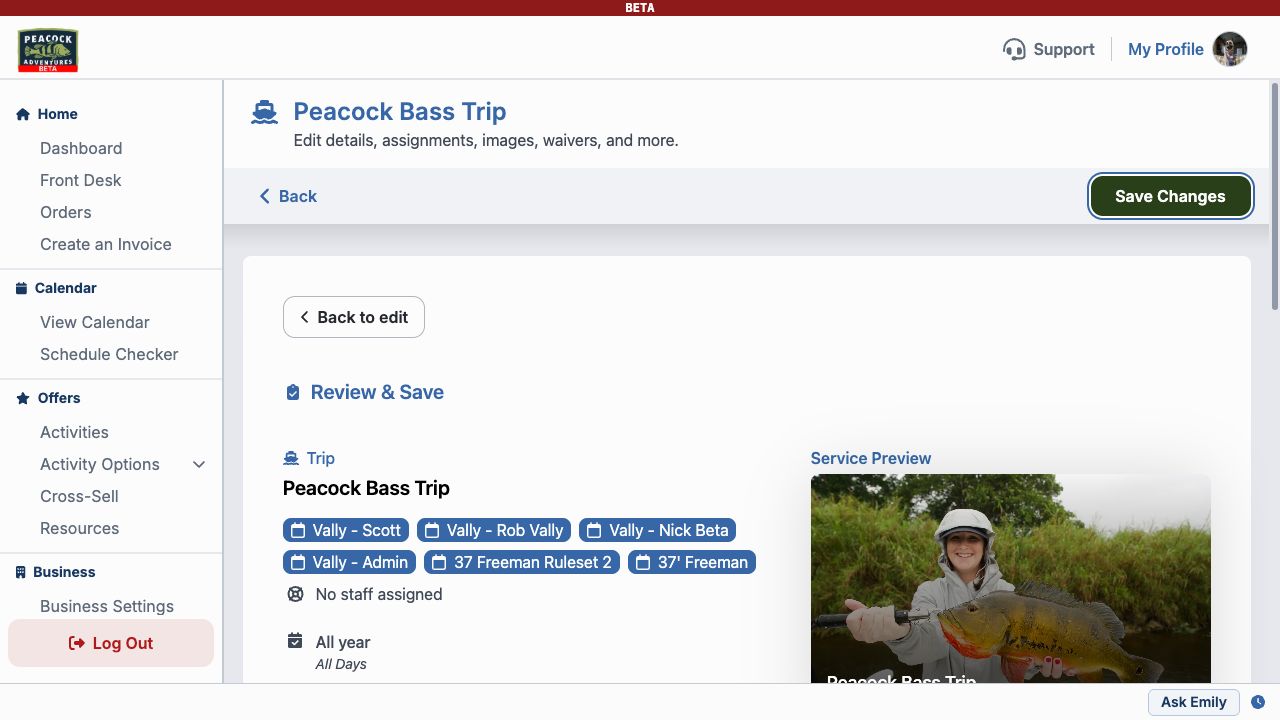
Select Go to Review to confirm assignments, availability, restrictions, taxes, locations, the customer preview, and each offer. Select Back to edit to correct anything, or Save Changes when the activity is ready.
Return to Offers → Activities to make the activity active, preview the customer page with View, or use Actions to copy or delete it.