
Create a Booking from Schedule
Create a Vally booking from an available calendar slot. Check capacity, assign resources, and review the invoice before creating the order.
Playback speed: 1×
The recording could not be played. Please try again.
Use the Schedule when the requested date and time are fixed. Vally carries the selected activity, time, offering, and assignments into a new invoice.
Choose an available slot
- Open Calendar.
- Switch from Calendar to Availability.
- Go to the requested date, find the activity, and select an available time.
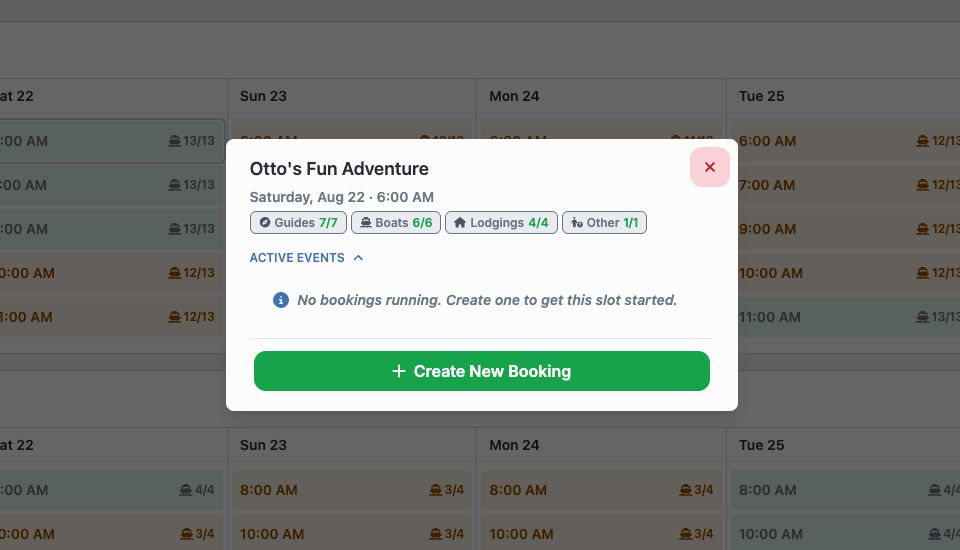
- Check the slot’s remaining staff and resource capacity. The dialog also lists bookings that already use the slot.
- Select Create New Booking.
Complete the booking
- Search for the customer, or leave the customer field blank and add the contact details on the invoice.
- Confirm the activity, start time, and offering.
- Set the participant or ticket count.
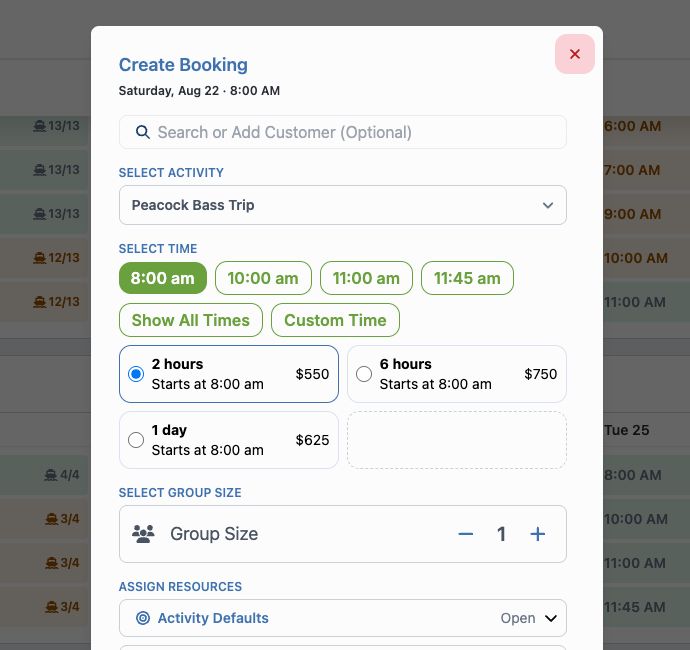
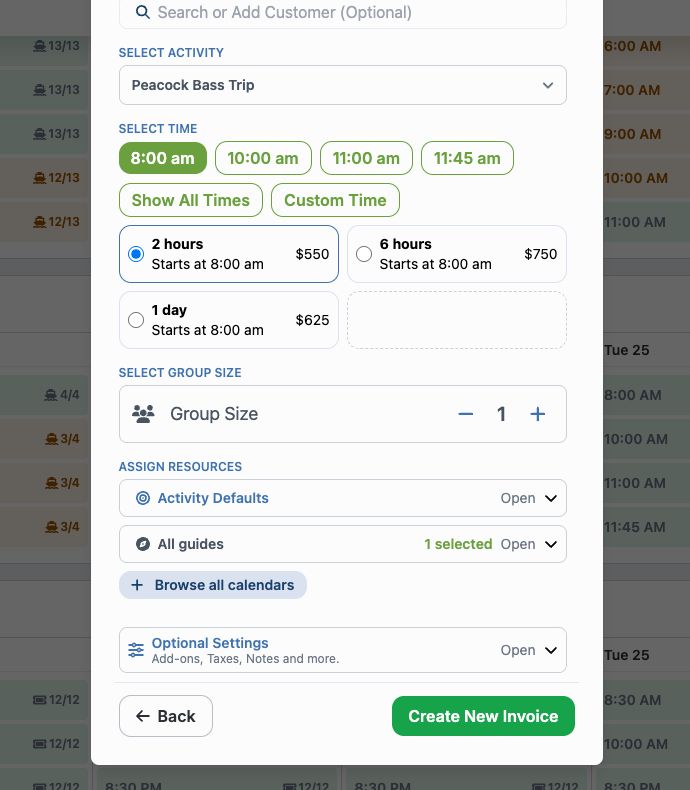
- Under Assign Resources, select the calendar, staff, and other resources that Vally must reserve. At least one calendar is required before Create New Invoice becomes available.
- Open Optional Settings only when the booking needs an add-on, discount, tax, meeting address, or notes. Customer Notes appear on the customer’s order. Private Notes are visible only to the business and assigned guides.
- Select Create New Invoice.
Vally opens Create an Invoice with the booking already filled in. Add the customer’s contact details before you continue.
Review and create the order
- Check the customer, booking time, assignments, price, tax, add-ons, deposit, and email setting.
- Select Review Details.
- Select Edit to correct the invoice, or select the final action to create the order.
The final action is Send Invoice when the order has a deposit to collect later. It is Submit Order when you record a checkout payment or the deposit is $0.
Fix a problem before you create the order
- If the slot no longer has capacity, return to Calendar and choose another available time.
- If a resource is busy, choose another resource or change the time. Do not continue until the assignment matches the real schedule.
- If Create New Invoice is disabled, select a calendar. For ticketed activities, also set the ticket count.
- If Review Details is unavailable or shows Incomplete, read the error in the invoice. Add an email address or phone number for the customer, then correct any missing time, calendar, price, or deposit setting.
Check the new order
After you create the order, Vally opens it in the Portal. Check the booking date, time, participants, assignments, total, balance, and payment status before you leave the order.